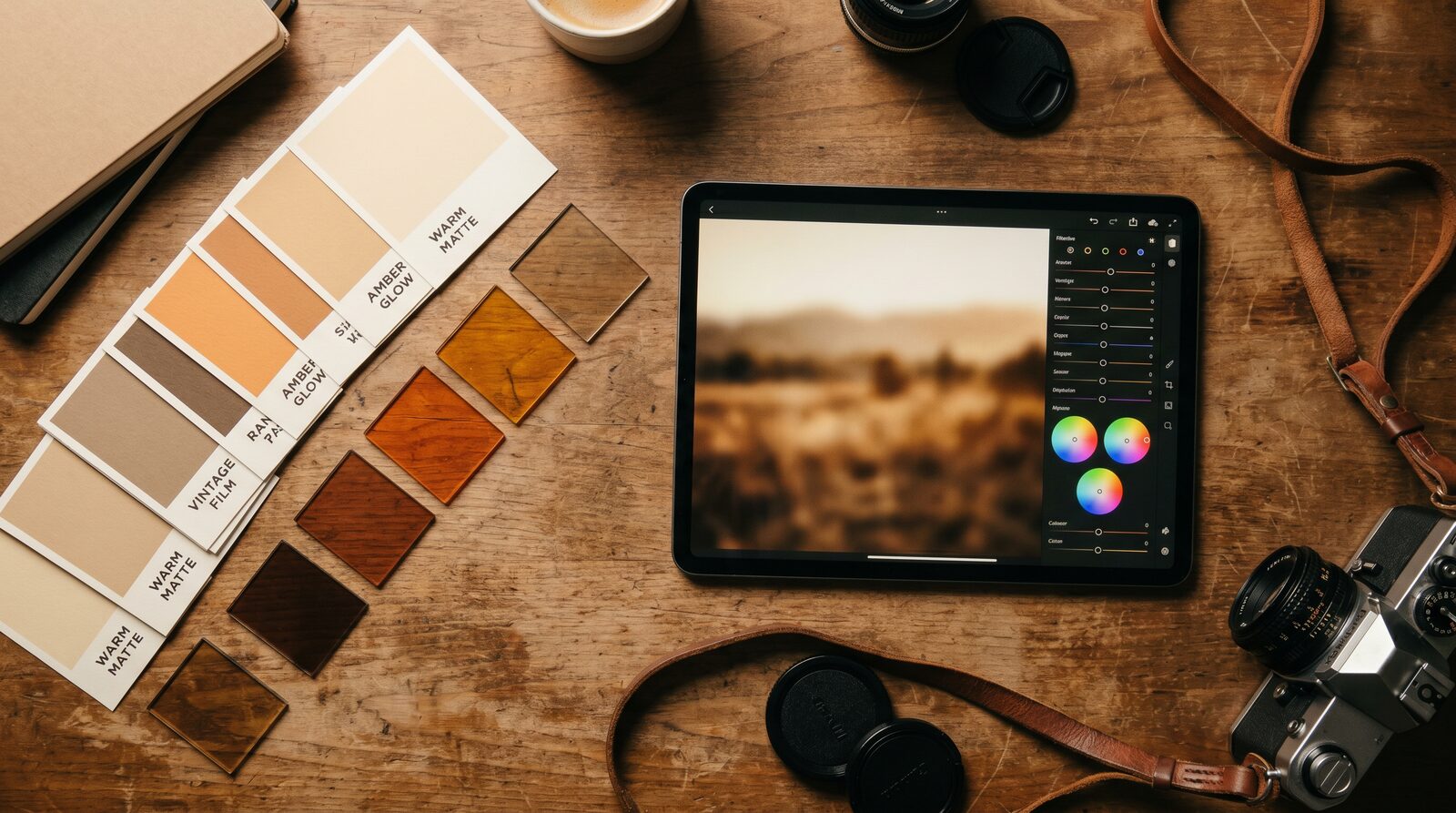
AIGE Presets: Save Your Style, Reuse It Forever
You finally landed on the look. The color grade, the lighting, the mood: the thing that makes a generation feel like it's actually yours. Then you try to make a second one in the same style and realize you don't remember the exact wording. Was it "moody teal highlights" or "cool cinematic teal"? Which aspect ratio did you use? Which model, even?
That's the gap a preset closes. In AIGE, a preset is a saved prompt plus the settings that came with it, bundled into one thing you can pull back up instead of reconstructing it from memory. Save it once, apply it forever.
What a preset actually is
Strip away the UI and a preset is a small record: a name, a prompt, a preview image, a set of tags, and optional image adjustments like brightness, contrast, saturation, and hue. It isn't a separate AI model or a new generation mode. It's a saved recipe that fills in your prompt bar and settings the way you'd type them in by hand, minus the remembering.
Presets in AIGE come from three places: a curated set AIGE ships with, presets other creators have published, and presets you build yourself from a generation you already made. That third kind is what this guide is actually about.
Turning a generation you love into a preset
You don't start a preset from a blank form. You start from something that already worked. Open any completed image in your history or grid and use the Convert to Preset action on it. This works on images only; video generations aren't convertible into a preset today. AIGE runs the image through a Gemini vision pass that does the actual useful work: it rewrites your prompt into a reusable version, stripping out the character-specific details so the style carries over to whichever face or subject you point it at next, instead of staying locked to the one person in the source photo.
The same pass suggests a title and a short set of tags automatically, so you're not stuck naming your own style from scratch. You can still edit the suggested title before you save.
From there you get two real choices, not one "save" button. Save draft keeps the preset private, sitting in your own preset library where nobody else sees it. Publish preset puts it live in AIGE's preset marketplace, where any creator can find and use it. Publishing isn't the only path to reusing your own style, but it's the one that turns a style you're proud of into something other people can build on too.
Free, paid, and the royalty that follows you
When you publish, you choose Free or Paid. Free costs nothing for anyone else to use. Paid lets you set a price between 1 and 100 credits per use. Here's the part worth knowing: every time someone else generates with a paid preset of yours, you earn a 15% royalty on what they spent, credited automatically the moment their generation finishes. You don't have to do anything to collect it.
Honest note: royalties only move credits on paid presets. A free preset still tracks how many times it gets used, but there's nothing to earn on it, since nothing was charged. Free means free for the person using it, not "free, but I still get paid."
Applying a preset when you're generating
You can pull up a preset that's yours, someone else's, or one of AIGE's own. Open the Presets menu from the star-icon button next to the prompt bar. It opens a searchable grid you can filter by category, combining the built-in library, published creator presets, and, if you've connected it, your saved Pinterest presets in one place.
Tap a card and it fills your prompt and matching settings immediately, no copying a prompt from somewhere else and hoping you also remembered the aspect ratio. The preset you picked shows up as a small thumbnail chip on the Presets button itself, with an × to clear it if you change your mind before generating.
Browsing presets other creators have already made
If you'd rather find a style than build one, AIGE also runs a public presets feed at aige.ws/presets: real prompts creators have shared, filterable by model, style, and media type, and sortable by newest or most tried. Open one and you get the full prompt, an attribution line for whoever shared it, a Copy prompt button, and a Try in AIGE button that loads the prompt and its original settings straight into your generator, ready to hit Generate.
Honest note: this public feed is a discovery gallery, not a mirror of your own saved presets. The prompts on it are pulled from creators sharing their work across the web, with credit attached to the source. Your own drafts and anything you've personally published live in the in-Studio Presets menu, not on this page.
Quick answers
Question | Answer |
|---|---|
What does a preset actually save? | A prompt, a preview image, tags, and optional image adjustments (brightness, contrast, saturation, hue): enough to refill your prompt bar and settings in one click. |
How do I turn my own style into a preset? | Open a completed image in your history and use Convert to Preset. A Gemini vision pass rewrites the prompt to be reusable, then you save it as a private draft or publish it. |
Can I earn credits from a preset I publish? | Yes, if you mark it Paid (1–100 credits per use): you earn a 15% royalty automatically each time someone else generates with it. |
Do free presets pay a royalty too? | No. A free preset tracks how often it's used, but no credits change hands, so there's no royalty to collect. |
Where do I apply a saved preset? | The Presets menu, opened from the star-icon button next to the prompt bar. Search or filter, then tap a card to fill your prompt and settings. |
Is /presets the same as my personal preset library? | No. /presets is a public discovery feed of prompts shared by creators across the web. Your own drafts and published presets live in the in-Studio Presets menu. |
Do this next
Next time you generate something you'd hate to lose the recipe for, use Convert to Preset on it before you move on. It takes the analysis off your hands and turns "I loved that one" into something you can actually pull back up later. Want to see what other creators have already locked in first? Browse aige.ws/presets and try one with a single click. And if the style you're chasing depends on the same face showing up every time, pair presets with our guide to consistent AI characters: presets carry the look, characters carry the identity.
Comments
Be the first to comment.