How to Create UGC-Style Content with AI Characters
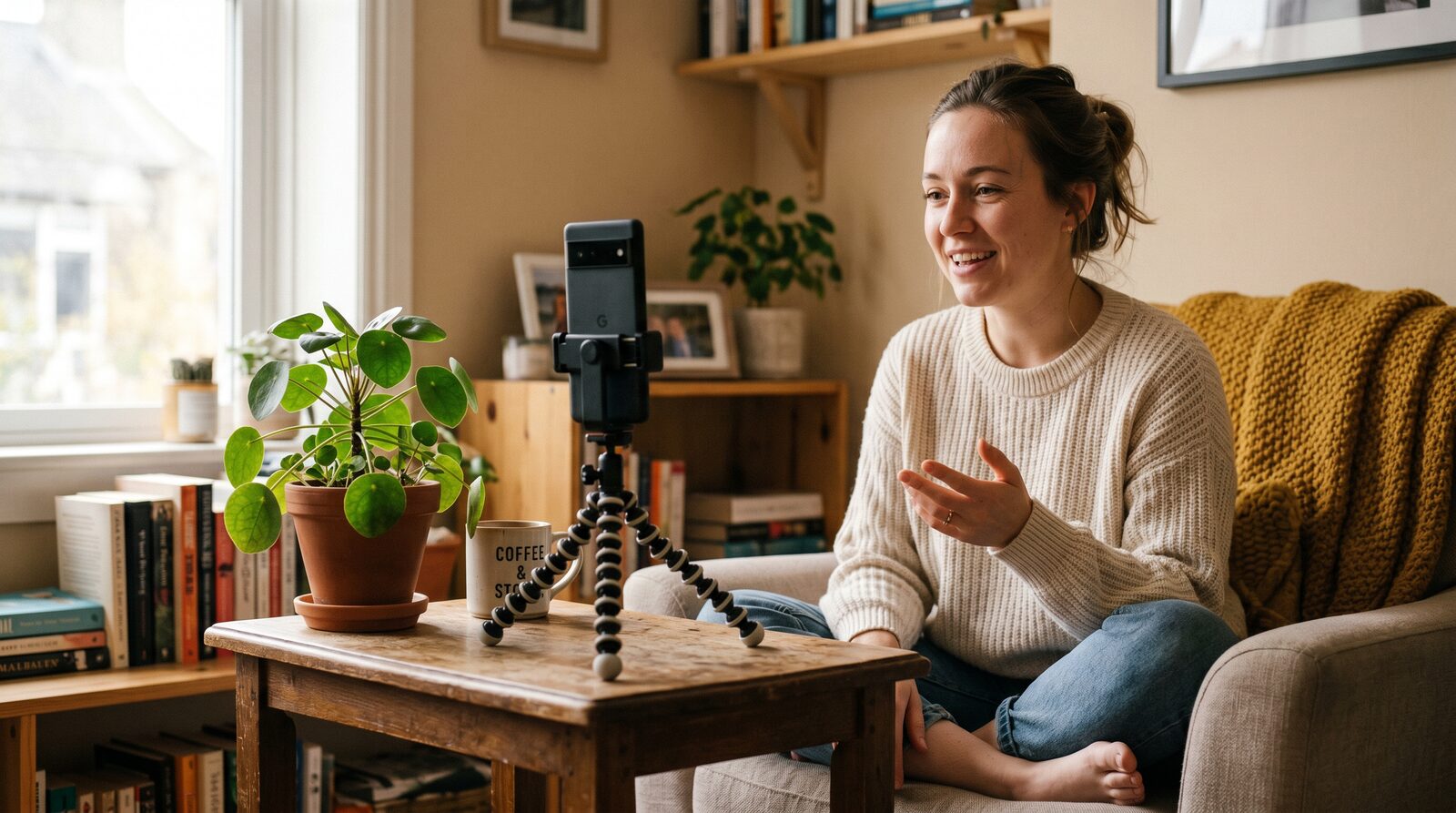
You've seen the ads that don't feel like ads: someone talking straight into their phone camera about a skincare routine or a productivity app, lighting a little rough, energy completely real. That's the UGC-style format working exactly as intended. It converts better than polished studio shoots precisely because it doesn't look like a shoot. The catch? Making a steady stream of it the traditional way means booking a real person, over and over, for every product angle and every script variant.
Here's the workaround: build one consistent AI character, then generate them in ordinary, testimonial-style settings using AIGE's normal image and video tools. Same face every time, new setting every time you need one. This is a practical walkthrough of assembling that workflow from pieces that already exist in AIGE. There's no dedicated "UGC button," because there isn't one.
Step 1: Build the character whose face carries every piece
The whole format depends on one thing: the same person showing up across every ad variant, the same way a real UGC creator would. In AIGE, that's a character, a reusable identity built from your reference photos in the Studio's character switcher. Once it exists, every image or video generation you run against that character's characterId uses its saved avatar (or reference gallery) as the visual anchor, so the face holds steady instead of drifting into a new person each time you generate.
If you haven't built a character yet, that's the actual first step here, not a footnote. Our guide to consistent AI characters covers building one in depth. Everything below assumes you already have a character (or twin) to point generations at.
You don't have to build the face yourself, either. If you'd rather license an existing identity than create one from scratch, creators can publish their characters as twins on AIGORA and set rental terms (hourly, daily, weekly, or monthly) so you can rent a face that already has an audience instead of starting from zero. The mechanics of that are covered in our guide to renting a digital twin.
Step 2: Generate testimonial-style shots, not portrait shots
Once you have a character to generate with, the "UGC" feel comes entirely from the prompt, not from a special mode. Skip the studio-lighting, magazine-cover language you'd use for a hero image, and describe the kind of shot a real customer would actually take: handheld angle, bathroom mirror, kitchen counter, car dashboard, phone held at arm's length. Describe the product in-hand, a believable room, and an expression that reads as talking-to-camera rather than posing.
The generation mechanics are the same ones used for any AIGE character image or video: pick your model, attach the character, describe the scene, generate. There's no separate "UGC mode" to toggle; the format comes from how you describe the shot, not from a different tool underneath it.
For video, the same principle carries over: request a plain, phone-camera framing and a casual talking pace rather than a cinematic push-in. If you want the character to actually speak a script, pick a model that supports lip movement and describe the line you want mouthed in the prompt. The render still runs through AIGE's standard video generation, credits and all.
Step 3: Iterate variations for A/B testing
This is where the assembled workflow actually beats hiring a person for every version. Once your character exists, generating five different hooks, backgrounds, or camera angles just means five more generations against the same characterId, not five more shoots. Keep the face and core setting constant and vary one thing per generation: the opening line implied by the framing, the room, the product placement, the outfit. That's how you build an actual A/B set instead of one nice shot you're stuck reusing everywhere.
Treat each variant as disposable. Generate a batch, drop them into your ad platform's test, and only invest further generation time (and credits) into whichever angle actually performs. The cost of a "bad take" here is a handful of credits, not a rebooked shoot day. That's the real advantage, and it's worth saying plainly instead of dressing it up as something fancier.
What this workflow is not
Honest note: AIGE does not have a dedicated "UGC generator," an advertiser-facing brand-licensing tier, or any commercial product built specifically around this use case. What you're reading is a workflow assembled from two real, general-purpose systems, character creation and video/image generation, plus, optionally, the same twin-rental system every creator on AIGORA uses to license their identity. Marketers and creators doing this today are using the identical tools and rental terms as anyone building a character for any other reason; there's no separate advertiser contract, no bulk-licensing pricing, and no dedicated commercial-use toggle. If you need broad commercial rights to a rented twin, that's a conversation to have directly with the twin's owner through the rental terms they've set, not a checkbox AIGE provides.
Quick answers
Question | Answer |
|---|---|
Is there a dedicated UGC content generator in AIGE? | No. There's no dedicated UGC feature or brand-licensing product; this workflow combines AIGE's character system with normal image/video generation. |
Do I need to create my own AI character? | Not necessarily. You can create one from reference photos, or rent an already-published twin from another creator on AIGORA under their rental terms. |
What makes a generation look "UGC-style" instead of polished? | The prompt. Describe handheld framing, casual settings, and a talking-to-camera tone rather than studio lighting and posed composition. |
Can the same character appear in both photos and video? | Yes. The same character/twin identity can be used as the reference for both image and video generation. |
Is there a special licensing tier for advertisers? | No. Marketers use the same character-creation and rental systems as any other creator; commercial terms for a rented twin come from that twin's rental settings, not a separate advertiser product. |
How do I test multiple ad variations quickly? | Generate multiple images or clips against the same characterId, changing one variable (hook, setting, angle) per generation, since each variant costs credits rather than a reshoot. |
Do this next
Start with the face, not the ad. Open the AIGE Studio and create your character from a few reference photos: that's the piece everything else in this workflow depends on. Once it exists, describe your first testimonial-style scene and generate it; the rest is iteration.
Comments
Be the first to comment.