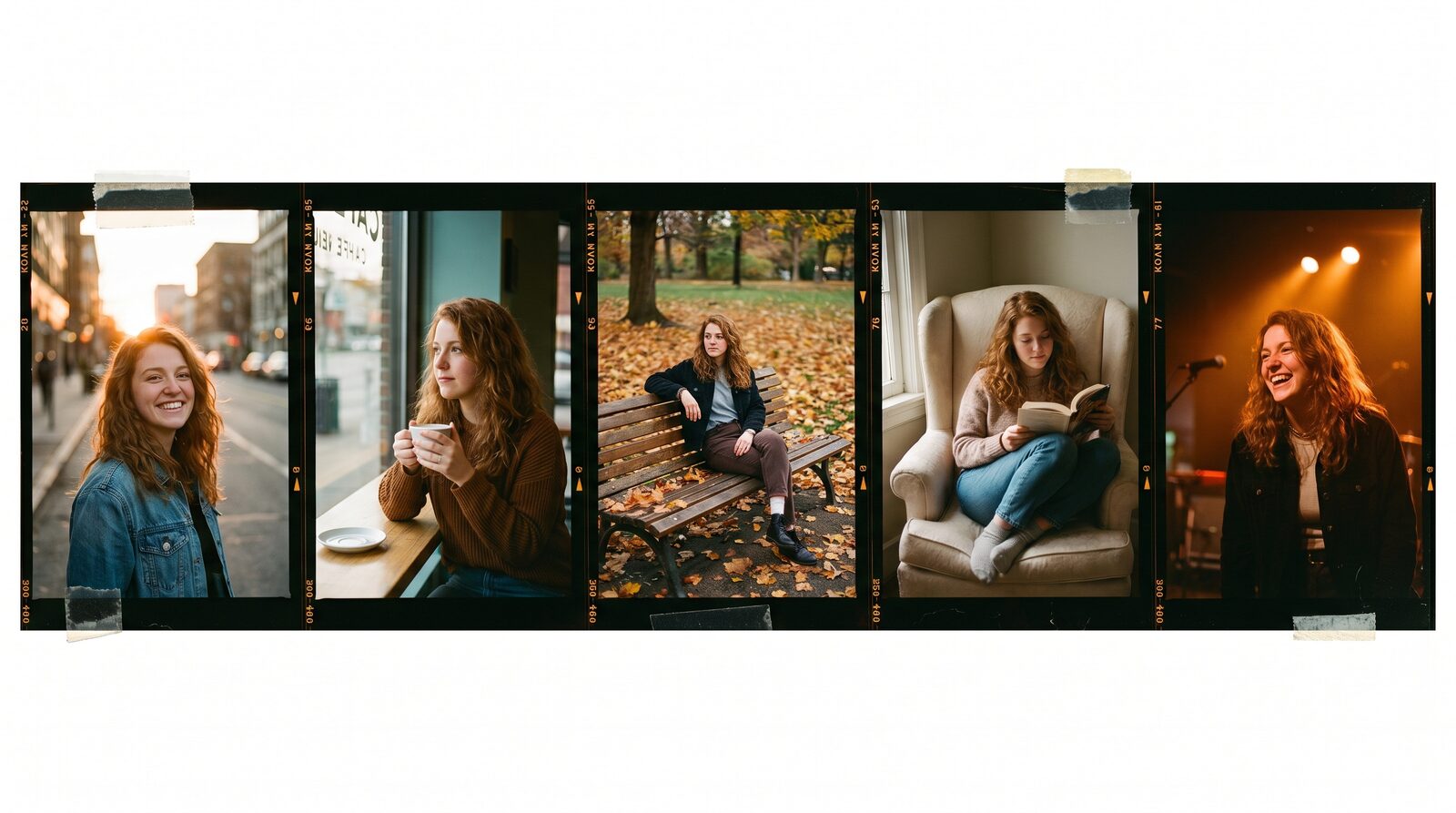
Consistent AI Characters: Same Face in Every Generation
You finally got a great result. The lighting, the pose, the vibe: all perfect. So you write almost the same prompt again, hoping to get a companion shot, and the face that comes back is a stranger. Same words, different person. That's not bad luck. It's how most AI image generators work: every prompt is a fresh roll of the dice, with nothing telling the model which face to keep.
AIGE fixes this by giving your subject a persistent identity instead of a one-off prompt. Upload a few reference photos once, and every image or video you generate after that anchors back to the same face. This guide covers why the drift happens, what a persistent character actually is under the hood, and walks through your first session end to end.
Why faces drift in the first place
A typical text-to-image model doesn't know your character. It only knows your words. Type "woman with brown hair, green jacket, city street" twice, and you'll get two different women who both technically match the description. The model isn't remembering anything between generations; it's re-imagining the scene from scratch every single time. Even reference-image workflows that let you attach one photo to one prompt only anchor that single generation. The moment you start a new prompt, you're back to re-attaching the photo and hoping the model reads it the same way twice.
That's fine for a one-off image. It falls apart the moment you need the same person across a grid of posts, a multi-shot video, or a character you're building a following around. Consistency has to be structural, not something you re-explain in every prompt.
What a persistent character actually is
In AIGE, a character isn't a prompt fragment. It's a record: a name, an avatar, and a set of uploaded reference photos, stored per character in your account. Create one from the character switcher in the Studio, and it becomes the identity every future generation can anchor to. Add photos to its gallery whenever you have them; you don't need to front-load a perfect set on day one.
Here's the part that actually does the work: every image and video generation call in AIGE carries an avatar_id (the character's ID) straight through to the generation backend, alongside your uploaded reference photos as source images. The model isn't just reading your prompt; it's being told explicitly whose face this is. Switch characters mid-session with the character switcher, and every following generation retargets to the new identity automatically. No re-uploading, no re-explaining.
Honest note: this is a strong anchor, not a hard guarantee. Extreme angles, heavy stylization, or a wildly different lighting setup can still bend a face slightly, the same way any generative model does. What's different is that you're not fighting the tool for consistency. You're building on top of an identity that's already there.
Your first session: create, generate, animate, dress
Here's the fastest path from zero to a consistent character across formats.
Create the character. Open the character switcher and give it a name. This creates the record everything else anchors to; you can add reference photos and details as you go.
Upload a few reference photos. In the Studio, upload photos for this character. They're saved to that character's gallery in your account, not just used for one generation and discarded.
Generate them in a new scene. Write a normal prompt (different outfit, different setting, different pose) with the character selected. The generation call carries the character's identity along with your prompt, so the face holds while the scene changes.
Put them in motion. Switch to video mode with the same character selected. The same identity anchoring applies to video generation, so the person in your video is the person from your images, not a new face the video model invented.
Dress them. Head to the Fitting Room and pick the same character from the project selector. It's reading from the exact same character list, so there's no re-uploading a selfie or rebuilding an identity. Swap outfits in seconds and generate the look.
Every step reuses one identity. That's the whole point: build the character once, then spend your time on scenes, outfits, and motion instead of re-fighting for the same face.
Where consistency actually shows up
A few concrete places this matters in practice:
Multi-image posts and carousels. A grid of five images that are all obviously the same person reads as a real profile, not five random AI outputs stitched together.
Video. A talking-head or motion clip needs the face to hold from the first frame to the last. See how that plays out in a full cinematic portrait-to-video walkthrough.
Trying on outfits. The Fitting Room only makes sense if the person wearing the outfit is recognizably the person you started with. That's the same character record, reused.
Choosing a video model. Different video models handle a reference face differently under motion. Our Kling vs. VEO vs. Seedance comparison breaks down how each one performs.
If you're building toward something more permanent (a character with its own public presence), that's a related but bigger idea covered in what a digital twin actually is.
Quick answers
Question | Answer |
|---|---|
How many reference photos do I need? | A few is enough to start. You can keep adding more to the same character's gallery over time. You don't need a perfect set upfront. |
Does this work for video, not just images? | Yes. The same character identity carries through to video generation, so the face doesn't reset when you switch from images to motion. |
Do I have to re-upload photos for every new scene? | No. Upload once per character; every generation after that references the saved character, not a fresh upload. |
Can I use the same character in the Fitting Room? | Yes. The Fitting Room's project selector reads from the same character list, so you pick the same identity instead of starting over. |
Will the face ever drift at all? | It's a strong anchor, not a hard lock. Extreme angles or heavy stylization can still shift details slightly, same as any generative model. |
Do this next
Open the character switcher in the Studio and create your first character. Give it a name, then start adding reference photos and generating scenes around it. That one record is what every future image and video will anchor to.
Comments
Be the first to comment.