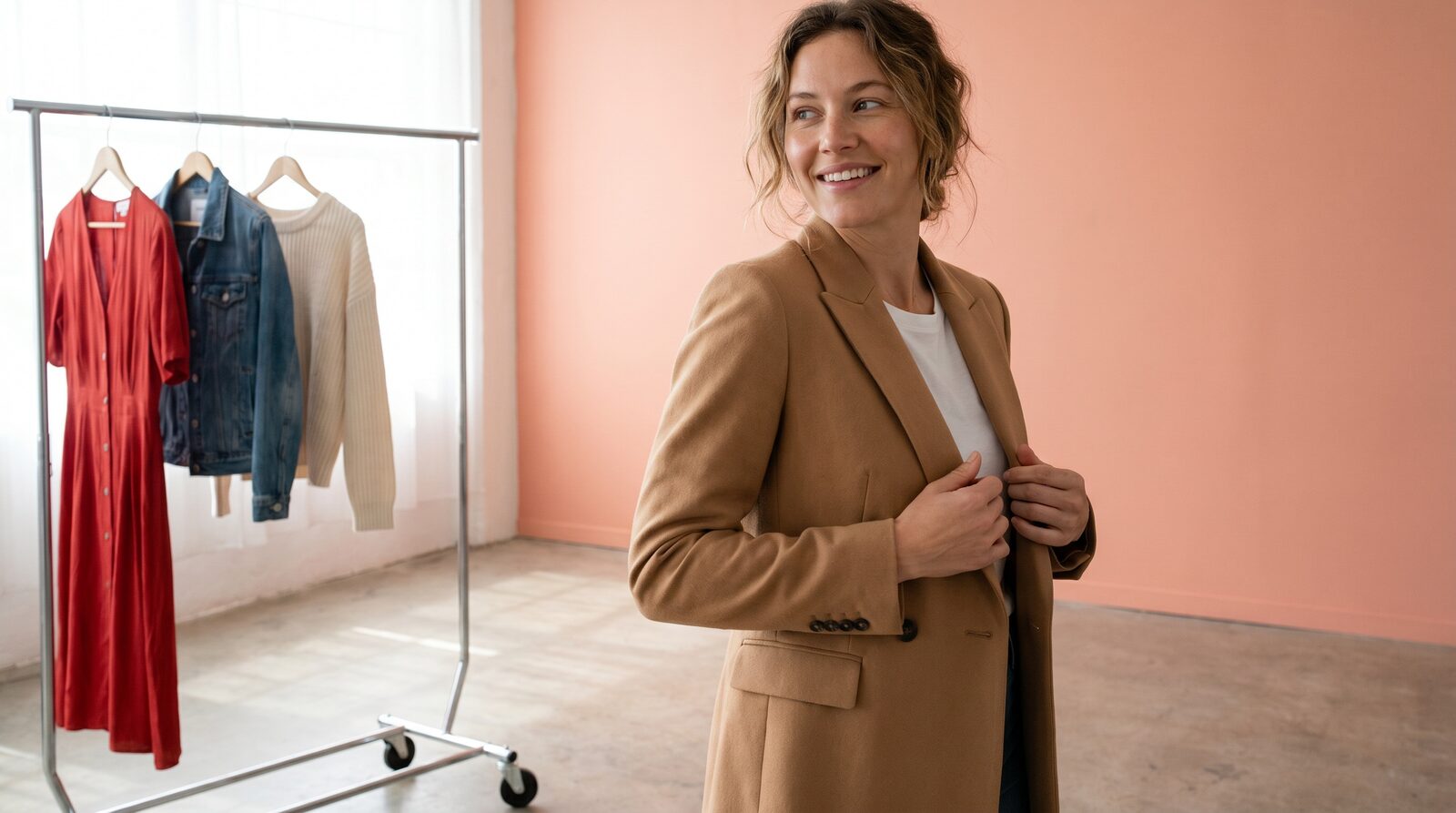
AI Virtual Try-On: Dress Your Character in the Fitting Room
A single outfit photoshoot can eat an entire afternoon and a chunk of your budget, and that's before you've tried a second look. If you want to show the same character in ten different outfits, you're normally looking at ten setups, ten lighting changes, and ten rounds of edits.
The Fitting Room in AIGE skips all of that. Pick your character, choose an outfit from the wardrobe, hit generate, and you've got a new fashion photo in about the time it takes to make coffee. Here's exactly how it works.
1. Pick or create your character
Everything in the Fitting Room is built around a character, so start there. Open the Project dropdown in the Fitting Room panel and choose an existing character from your library, or switch to No project to work freeform. If you've rented someone else's character, it shows up here too, tagged under “Rented,” with your remaining generation quota visible right in the dropdown.
If you haven't built a character yet, do that first. It's what makes every outfit you generate here actually look like the same person. For the full walkthrough on getting faces and features to stay consistent across generations, see our guide on building consistent AI characters.
2. Upload your reference photos
Next, give the Fitting Room something to work with: a selfie (for the face) and a body photo (for build and proportions). Click the photo slot, upload an image, and it's saved to your personal photo library for that character. Next time you open the Fitting Room, your reference shots are already there. You can keep multiple selfies and body photos on file and switch between them, or delete ones you no longer need.
3. Choose your outfit from the wardrobe
The left panel is organized into collections, then categories: Tops, Bottoms, Shoes, Accessories, Outerwear, and Hats. Browse a collection, tap into a category, and select pieces one at a time. You can stack up to ten items in a single look, say a jacket, a top, pants, and shoes together, and the Fitting Room combines them into one outfit for the generation.
Liked a combination? Save it as an outfit package so you can reload the exact same pieces later instead of rebuilding it from scratch.
4. Set the pose and generate
Before you generate, pick a pose from the preset list: standing front, three-quarter, walking, sitting, leaning, hand-on-hip, and a handful of others aimed at fashion-style shots. The pose sets the framing and body language of the final image; the outfit and your reference photos handle the rest.
Hit Generate and the Fitting Room builds a prompt that references your uploaded photos and selected pieces, then renders a full-body fashion image combining your character with the outfit and pose you picked. A single generation costs 8 credits.
What happens if it doesn't look right
If the result doesn't land (wrong proportions, an item didn't render clearly), you haven't lost the outfit. Your selected items and pose stay set, so you can adjust one variable (swap a pose, try a different top, change the reference photo) and regenerate without reassembling the whole look.
5. Iterate on styles
This is where the “endless wardrobe” part comes in. Swap the top, keep the bottoms. Try the same outfit in a different pose. Test a jacket over three different shirts. Each generation is saved to your history, organized into folders so you're not scrolling through a flat pile of images, and every result also lands in your character's general history alongside your other generations.
Because the character reference stays the same across every generation, the person in the photos stays recognizable from outfit to outfit. That consistency is the whole point of pairing the Fitting Room with a well-built character in the first place.
6. Use the results in your content
Once you've got a handful of looks you like, they're just images. Drop them straight into a post, or bring several into a multi-slide layout. If you're planning a “5 outfits, 1 character” style carousel for Instagram, our carousel maker guide walks through assembling multiple generations into a single swipeable post.
Quick answers
Question | Answer |
|---|---|
How much does a Fitting Room generation cost? | 8 credits per generation (the |
Can I upload my own clothes to try on? | Not yet. Outfits come from the built-in wardrobe (Tops, Bottoms, Shoes, Accessories, Outerwear, Hats). You upload your own selfie and body photo as the reference. |
How many outfit pieces can I combine at once? | Up to 10 items in a single look: mix a top, bottoms, shoes, and accessories together. |
Do I need an account to use the Fitting Room? | Yes, the Fitting Room sits behind sign-in and account verification like the rest of the AIGE studio. |
Can I reuse an outfit later? | Yes. Save any combination of selected items as an outfit package and reload it anytime. |
Does it work with rented characters? | Yes, characters you've rented appear in the Project dropdown alongside your own, with your remaining quota shown. |
Do this next
Pick a character, load a reference photo, and put together your first look in the Fitting Room. Try the same outfit in two poses before you move on. It's the fastest way to see how much range one wardrobe piece actually gives you.
Comments
Be the first to comment.