Free Pinterest Pin Generator & Scheduler — AIGE
You've got a folder of good images and zero patience for writing ten Pinterest titles, ten descriptions, and ten sets of tags by hand. That's the actual bottleneck for most creators and small brands on Pinterest: not the platform, the metadata grind. AIGE's Pinterest tool skips the grind: drop your images in, let AI write everything Pinterest wants to see, then publish now or line up a week of Pins that post themselves.
This is a walkthrough of the whole flow, start to finish, using the free tool at aige.ws/pinterest.
Step 1: Drop in your images
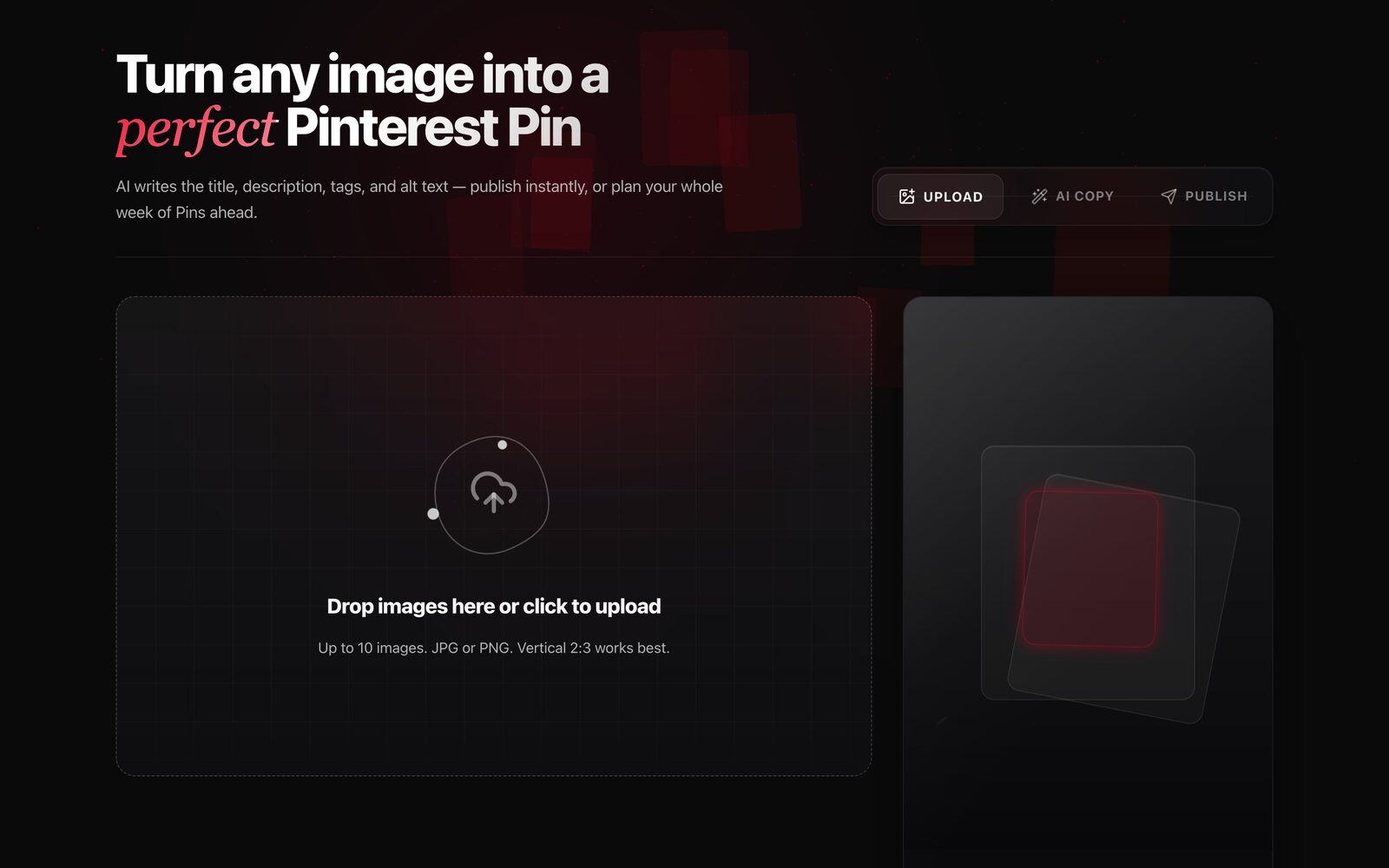
Open the Pinterest publisher. No login required to look around, upload, and preview. Drag images straight onto the page or click to open a picker. You can queue up to 10 images at once, JPG or PNG, and the tool tells you upfront that vertical 2:3 crops work best on Pinterest (which matches how the platform actually displays Pins in the feed).
Each image lands as its own card in a grid, with a live preview panel on the side showing roughly how the Pin will look once it's written up.
Step 2: Let AI write the Pin metadata
Hit Generate AI suggestions and the tool uploads your images, then analyzes each one to write a title, description, alt text, and a set of tags. You don't write a single word yourself unless you want to edit what comes back. If you add more images later, only the new, unanalyzed ones get processed and billed. It won't re-run (or re-charge) images that already have metadata.
One gate to know about: this is the point where AIGE asks you to sign in. Uploading and previewing images is free and open to anyone, but the AI writing step is a paid action, so it checks for an AIGE account first. Sign in (or create one) when the prompt appears, then hit Generate again.
Behind the scenes, this step includes a safety check on every image. Pins that come back flagged for adult content, weapons, hate/violence, or a visible minor are automatically excluded from publishing and scheduling. They simply won't appear as an option to send live, so nothing risky slips through by accident.
Honest note: this step costs AIGE credits (a small per-image charge), and the button shows you the total before it spends anything: no surprise deduction. If you're not sure how credits work across AIGE's tools, the credits guide covers the mechanics in full.
Step 3: Connect your Pinterest account
Once your Pins have titles and descriptions, connect Pinterest with one click. A popup handles the OAuth login, and the tool remembers the connection so you don't repeat it every visit. After connecting, you'll see your Pinterest boards in a dropdown, or you can create a brand-new board right there by typing a name (the AI even suggests one based on what's in the image, which you can accept or overwrite).
If your Pinterest session ever expires, the tool flags it clearly with a "reconnect" prompt rather than silently failing your scheduled Pins.
Step 4: Publish now, or schedule a batch
From here you have two paths:
Publish now: sends every ready, unflagged Pin straight to your selected board immediately.
Schedule: pick a start time (at least 3 minutes out) and, if you're queuing more than one Pin, choose a stagger: all at once, 1 hour apart, 3 hours apart, or 1 day apart. The tool spaces your Pins across that interval automatically so you're not publishing a pile of images in the same second.
Before you send anything, there's an AI-generated imagery checkbox. Check it if your images were AI-made, and that disclosure gets attached to the Pin. It's a simple, honest toggle: your call to make, not something the tool assumes for you.
Every Pin you schedule shows up afterward in the planner section of the same page, where you can track what's queued and reschedule it. If you'd rather build a full carousel-style visual before you ever get to Pinterest, the Atelier carousel guide walks through creating multi-image sets you can then feed straight into this workflow.
Quick answers
Question | Answer |
|---|---|
Is the Pinterest pin generator free? | Yes. Landing on the page, uploading images, and previewing Pins is free. Writing the AI metadata uses a small AIGE credit charge per image, shown before you confirm. |
Do I need to sign in to use it? | Not to upload and preview. That's open to anyone. Signing into AIGE is required before the AI metadata step (it's a paid action), and connecting your Pinterest account separately is only needed when you publish or schedule. |
How many images can I upload at once? | Up to 10 images per batch, JPG or PNG. |
Can I schedule Pins instead of posting immediately? | Yes. Pick a start time at least 3 minutes ahead, and optionally stagger multiple Pins 1 hour, 3 hours, or 1 day apart. |
What happens to flagged images? | Any image flagged for adult content, weapons, hate/violence, or a visible minor is automatically excluded from publishing and scheduling. |
Can I disclose AI-generated imagery on my Pins? | Yes. There's an AI-generated imagery checkbox that attaches a disclosure to the Pin before it publishes. |
Do this next
Head to aige.ws/pinterest and drop in two or three images you already have. Let the AI write the first batch of metadata, look over what it produced, and connect your Pinterest account when you're ready to see a real Pin go live.
Comments
Be the first to comment.