Watch the output. Choose a direction.
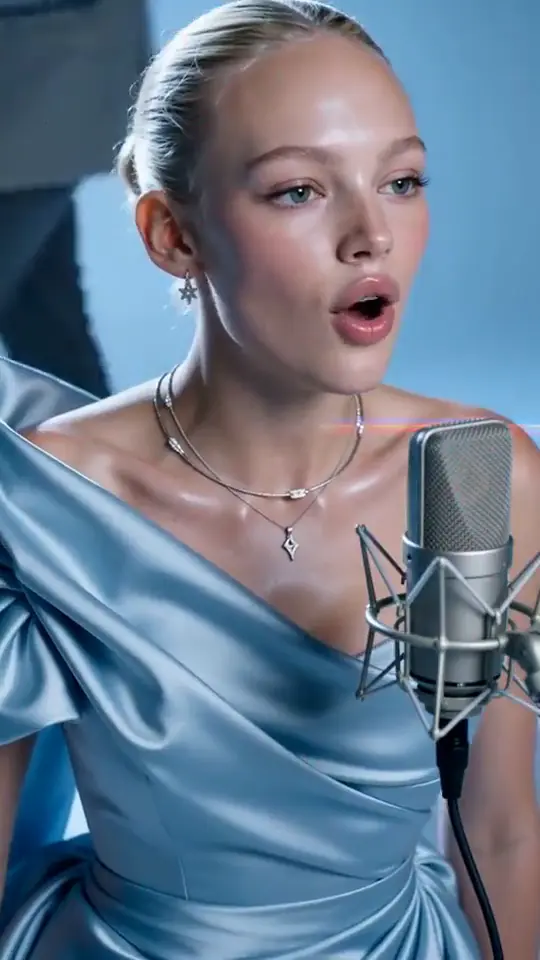
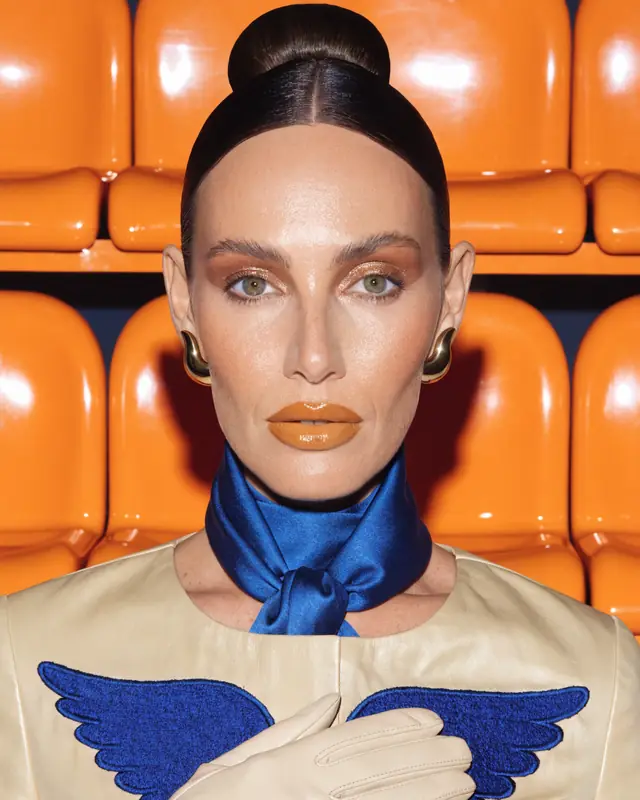
Before choosing a subscription, see the kind of short footage you want to make. These are real clips from AIGE’s library. They illustrate different visual directions, rather than a controlled comparison of models.
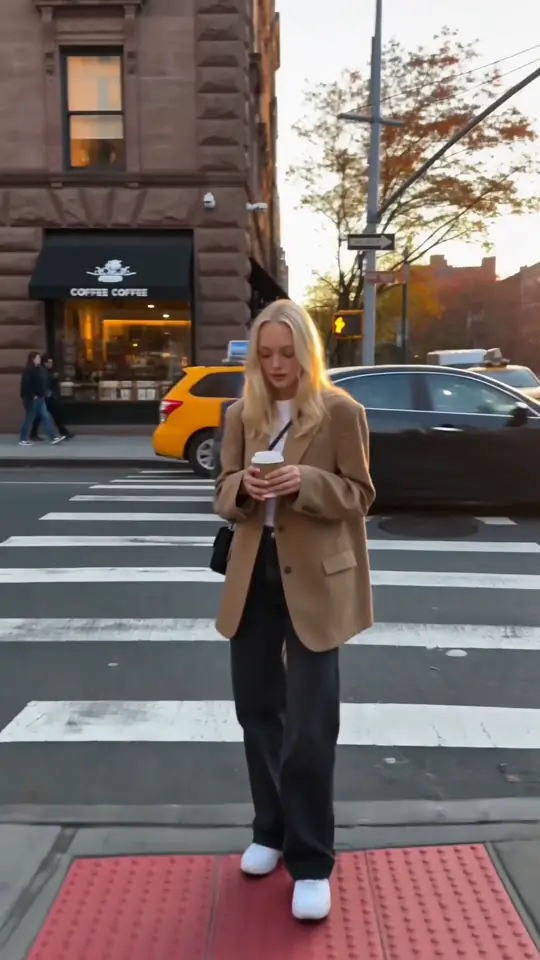
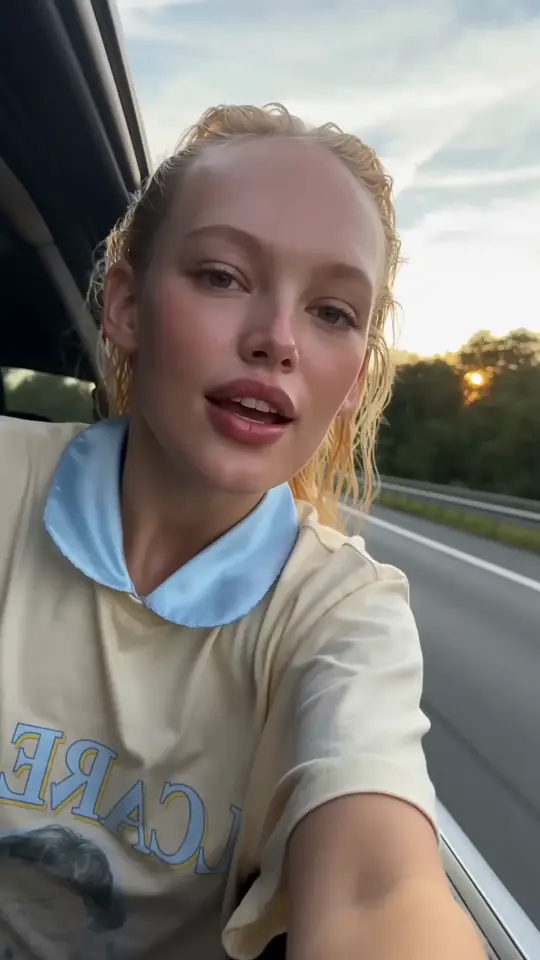
A character in a recognizable setting
Start with a readable subject and setting. For your own character, prepare a reference frame first, then ask for a small action. Check the face, hands and clothing throughout the clip.
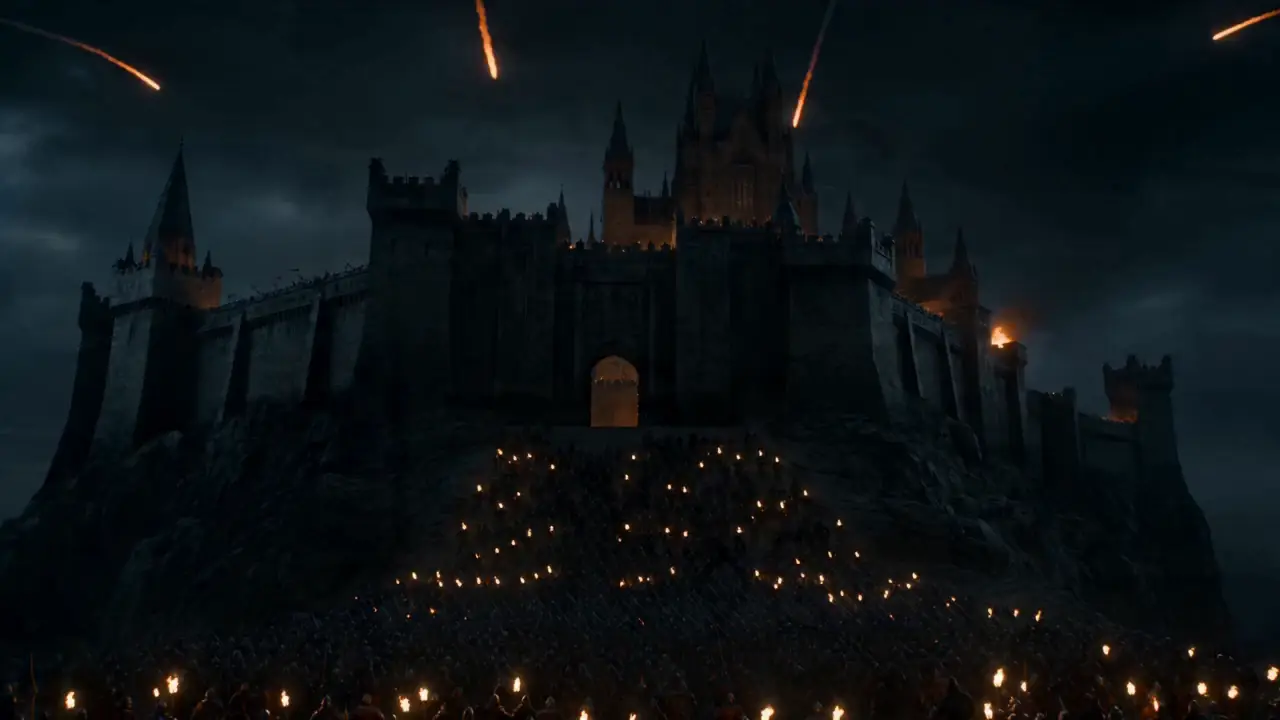
Use this ideaEstablish a world before adding a story
An establishing shot gives an edit its location and mood. Keep the camera instruction simple. Make the next story beat as a separate clip, rather than asking one generation to cover an entire film.
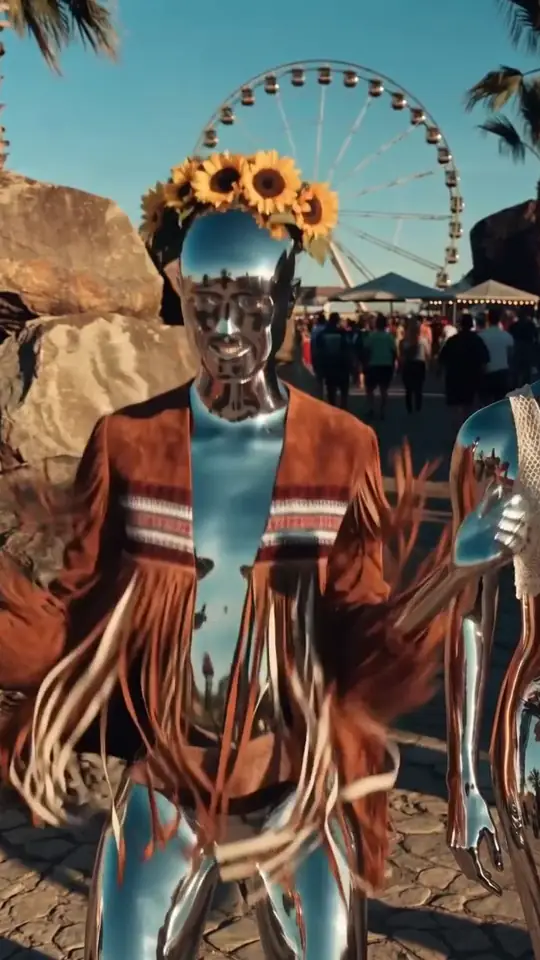
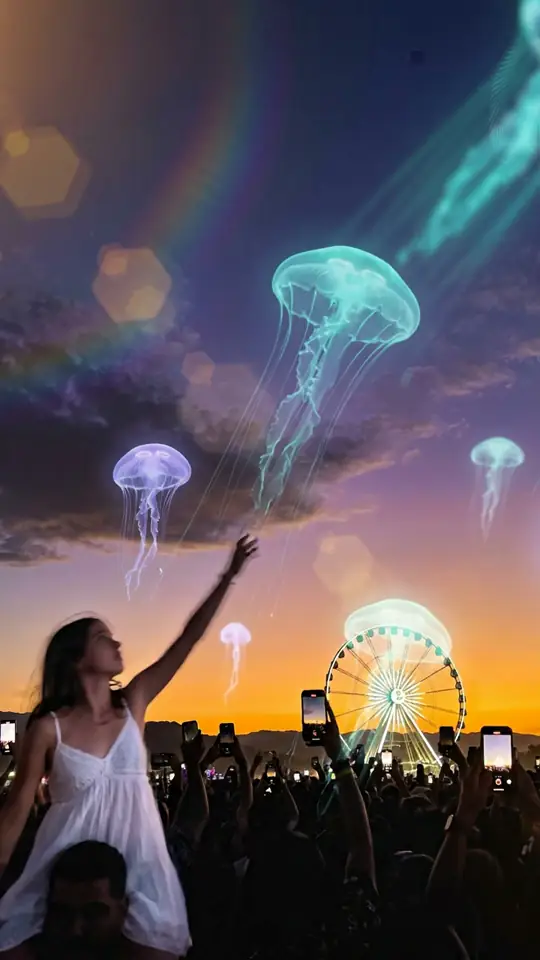
Use this ideaMake one visual idea the focal point
A strong visual contrast can carry a short clip: an everyday place plus an impossible subject. Keep the main motion easy to describe, then inspect the background for distracting changes.
Use this ideaThe editable prompts below are new templates for similar ideas, not the original prompts used to make these clips. A new generation will produce a different result.
Kling, Veo or Seedance: choose the model for this shot
There is no single best model for every brief. Start with the input you have, the sound you need and your testing budget. Compare one short shot before planning a whole sequence.
Kling V3: direct a shot with or without sound
Choose Standard or Pro, then decide whether the shot needs native audio. A useful starting point for a reference-led character shot or a silent visual you will edit later.
The studio offers 3–15 second lengths. Quality, length and sound change the cost and plan requirement.
Read the Kling guideVeo 3.1: build a scene around visuals and audio
Write the visual brief and any ambient sound or dialogue you need. Compare Lite, Fast and Pro when balancing an exploratory test against a more expensive generation.
Choose 4, 6 or 8 seconds. The calculator compares the 720p audio versions available in AIGE.
Read the Veo guideSeedance: compare motion at different resolutions
Try 2.0 Pro, 2.0 Fast or 2.5 for your shot. Use the resolution and duration controls to find a suitable test before committing more credits to a sequence.
2.0 Pro offers 480p, 720p and 1080p; Fast offers 480p and 720p. The studio’s 2.5 option supports clips up to 30 seconds.
Read the Seedance guideModel availability depends on your plan. The cost table and calculator show example settings; the studio confirms the current choices and quote.
How to use an AI video generator: your first clip in five steps
- Give the clip one job. Pick an opening hook, a character action, a product detail or an establishing shot. Decide where it will appear: a vertical social edit or a wider scene.
- Draft the idea and look. The creation flow asks what you want to make, lets you choose a visual direction, and shows your written brief. Edit it until it describes one useful shot.
- Choose your plan with the cost in view. Compare the credit allowances and model access, create your account, and complete checkout. Drafting does not spend generation credits.
- Prepare the generation in the studio. Open your draft, attach a reference frame if needed, then choose the model, available length, aspect ratio, resolution and audio. Review the quote before pressing Generate.
- Review, revise, then edit. Watch the whole clip. Keep a usable take or change one instruction for the next attempt. Assemble accepted shots in the video editor and export your edit.
You choose when to generate. Completing onboarding or payment opens your draft; it does not automatically create a video or spend its generation credits.
What is the first shot you want to make?
Describe it in your own words. Next, choose a look and review your written draft before comparing plans.
No card to draft your idea. Paid credits are required to generate; the studio shows the quote first.
Write a shot, not a whole movie
aige-first-video-shot.mdA practical brief, three editable templates, and a review checklist.Open in full
# Your first AI video shot

## Brief
Subject + setting + one action + framing/camera + lighting/style.
If you need sound, describe it separately and select a supported audio model.
If you need a particular face or product, prepare a reference frame you have permission to use.

## Before generating
- Pick the model, duration, aspect ratio and available resolution in the studio.
- Review the actual credit quote and plan requirement.
- Start with a short test. Leave room in your budget for revisions.

## Templates
### Everyday scene
Medium full shot of a woman in a tan blazer at a city crossing, holding a coffee. She looks up and takes one step forward. Gentle camera push-in, warm late-afternoon light, natural street style. One continuous shot.

### Cinematic world
Wide establishing shot of a stone castle at night, torches glowing below and streaks of fire crossing the cloudy sky. Slow forward camera movement, dark fantasy atmosphere, one continuous shot. No dialogue.

### Surreal visual
Vertical wide shot of a festival crowd at sunset beneath giant luminous jellyfish. The jellyfish drift slowly overhead as the crowd watches. Mostly still camera, soft glowing light, dreamy surreal atmosphere. One continuous shot.

These are new templates for similar ideas, not the original prompts for the library clips.

## Review
Watch the full clip. Check the face, hands, clothing, product shape, background, motion and sound.
Change one instruction at a time. Assemble accepted shots in the video editor.

## References
- AIGE model/settings guides: https://aige.ws/models/kling/ · https://aige.ws/models/veo-3/ · https://aige.ws/models/seedance/
- Google DeepMind prompt guidance: https://deepmind.google/models/veo/prompt-guide/
- Name the subject and the setting.
- Describe one main action, then the camera movement.
- Specify the light and visual style; describe sound separately if you need it.
- Prepare a clear start frame instead of describing a face from scratch.
- Keep the same reference and appearance description across a sequence.
- Review every output. References guide continuity; they do not guarantee it.
Medium full shot of a woman in a tan blazer at a city crossing, holding a coffee. She looks up and takes one step forward. Gentle camera push-in, warm late-afternoon light, natural street style. One continuous shot.
Use in AIGE →Wide establishing shot of a stone castle at night, torches glowing below and streaks of fire crossing the cloudy sky. Slow forward camera movement, dark fantasy atmosphere, one continuous shot. No dialogue.
Use in AIGE →Vertical wide shot of a festival crowd at sunset beneath giant luminous jellyfish. The jellyfish drift slowly overhead as the crowd watches. Mostly still camera, soft glowing light, dreamy surreal atmosphere. One continuous shot.
Use in AIGE →Working in Claude or ChatGPT? Connect AIGE over MCP and ask in plain words; your credits and saved characters come with you. Hand the card to your assistant as context. Set up the connector
Make the request specific enough to test
“Make a viral coffee ad with lots of scenes.”
It leaves the subject, action and camera unclear, and asks one short generation to do the work of an edit.
“Close-up of a ceramic coffee cup on a wooden table. Steam rises as the camera slowly pushes in. Warm window light, quiet morning mood, one continuous shot.”
Now you can judge whether the motion, composition and mood work. Add the campaign’s text and closing message in the edit.
For the underlying prompt elements, see Google DeepMind’s official Veo prompt guide. For controls exposed here, use the AIGE model guides above.
What one AI video generation costs
Examples from AIGE’s default credit table, checked September 30, 2026. Different settings use different amounts; the studio’s current quote is authoritative. Plans have a credit allowance, not unlimited generations.
What AI video costs: budget for attempts, not just the finished seconds
A usable shot may take more than one generation. If you budget three attempts at the same settings, multiply the per-generation credit quote by three. For example, three 5-second Kling V3 Standard silent attempts use 126 credits at the default rate; they are three separate outputs, not a guaranteed 15-second finished video.
Test a shorter length or a less expensive available setting first. Once the composition works, decide whether extra resolution, a longer take or sound is worth the additional credits. If a particular model needs a higher plan, compare its access alongside the allowance.
Understand the credit budgetKeep the character recognizable across shots
Use a reference when the face, outfit or product matters. Text alone asks the model to invent those details again. A clear start frame gives it a more concrete starting point.
- Prepare the still. Use your saved character or an image you have permission to use. Check the face, clothing, hands and composition before animating it.
- Describe movement, not a new identity. Ask for a small action that fits the frame. Keep the appearance and lighting description stable across related shots.
- Check continuity before the edit. Compare the beginning, middle and end of each clip. Reject a take if the face, outfit, product or background changes in a way that breaks the sequence.
References reduce guesswork; they do not guarantee identical details in every frame. For a sequence, keep a simple shot list and compare accepted takes together.
Read the character workflowTurn good clips into a finished video
Generation makes the footage. Editing gives it a beginning, a useful pace and an ending. For a first social edit, plan three beats: an opening visual, a detail or action, and a closing shot. Generate them separately so you can replace one weak take without rebuilding the entire sequence.
Bring accepted clips into AIGE’s video editor, arrange and trim them on the timeline, then review the export. Check text legibility, audio, framing and the destination platform’s requirements before publishing.
See the video editorCreating a clip does not automatically post it to your social accounts. Keep publishing as a separate review step.
Common problems, and what to change
- The face or product drifts: improve the reference frame, simplify the motion, and review the full output. A reference is guidance, not a guarantee.
- The motion is confused: reduce competing actions or camera directions. Test one change at a time so you can tell what helped.
- Text or logos look wrong: keep essential wording and precise brand marks out of generated footage; add and verify them in the edit.
- The dialogue or sound misses the brief: shorten the request, use a supported audio setting, and listen to the complete result before publishing.
- One clip does not tell the whole story: split the idea into shots and assemble the sequence in the editor.
- The credits run out before the edit is ready: budget for revisions, start with short tests, and review each quote before another attempt.
AI video: questions before you start
What AI video models does AIGE support?
AIGE generates video on Kling V3, Google Veo, and Seedance. Choose a model per generation; available clip lengths, resolutions, and audio options vary by model and plan.
Can I keep the same character across AI videos?
Use the same character references and start frames to guide continuity between clips. AI results can vary, so review the face and details in each output.
Is there a free AI video generator?
Not in AIGE. Drafting your video idea is free; generating the video uses credits from a paid plan, and the studio shows the cost before you generate.
What happens when I click Create my first video?
Describe a shot, choose a look, and review a written draft. Then compare plans and create your account before checkout. After payment, open the draft in the studio, review the model and credit cost, and choose when to generate. The onboarding draft is not a generated video.
How much does AI video cost in AIGE?
Paid plans start at $8.55/month with a monthly credit allowance. Each generation uses credits according to its model, length, resolution and audio settings. Some models require a higher plan. The studio shows the current cost before you run a generation; a subscription is not unlimited video.
Can I make an AI video from an image?
Yes. Use image-to-video with a supported model, attach a start frame in the studio, and describe the motion. A clear image guides the composition and appearance, but the result may change details. Use images you have permission to upload and animate.
Can I generate AI video from text alone?
Yes. Kling, Veo and Seedance all run as text-to-video when you give them only a prompt. Describe the subject, the setting, one action and the camera move. Add a start frame when a specific face or product has to match.
Can I make AI video for TikTok, Reels or YouTube Shorts?
Yes. Pick a vertical 9:16 frame where the model offers it, generate short shots, then trim and arrange them in AIGE's video editor and export an MP4. AIGE does not post to those platforms for you; you upload the export yourself.
Does AI video include sound?
Supported Kling V3, Veo 3.1 and Seedance versions can generate native audio. Availability and cost depend on the selected version and settings. Specify the sound you want and review the result; generated speech and sound are not guaranteed to match your brief exactly.
Can I make a longer video or a complete ad?
Generate individual shots, then arrange and trim them in AIGE's video editor before exporting. A single short clip is not a finished campaign. Review the edit, add any required text, and check the destination platform's format before publishing.
Can I cancel my subscription?
You can cancel from your account's billing settings. Check the selected plan's recurring price and any offer's renewal terms before checkout. Cancellation stops future renewal; it does not automatically refund past generations. See the refund policy for unused-credit refund conditions.
Does AIGE have an AI video API?
Yes, as an MCP server rather than a REST API: connect Claude, ChatGPT, Cursor or n8n with OAuth or an API key, at the same credit cost as the studio. API keys use your existing AIGE credit balance and do not grant signup credits. Choose a paid plan if you need credits.
Already building with an AI assistant?
You can also connect AIGE through MCP to supported assistants and automation tools. Model options can differ from the studio, and generations use credits. Start with the connector documentation rather than assuming every studio control is exposed to an agent.
Explore the MCP connector