Most "AI video generators" hand you one clip and a download button. You get a nice 8-second render, and then you're on your own. You end up pasting that clip into some other app to trim it, sequence it with other shots, and shape it into something you can actually post. That gap between "AI made a clip" and "I have a finished video" is where most people give up.
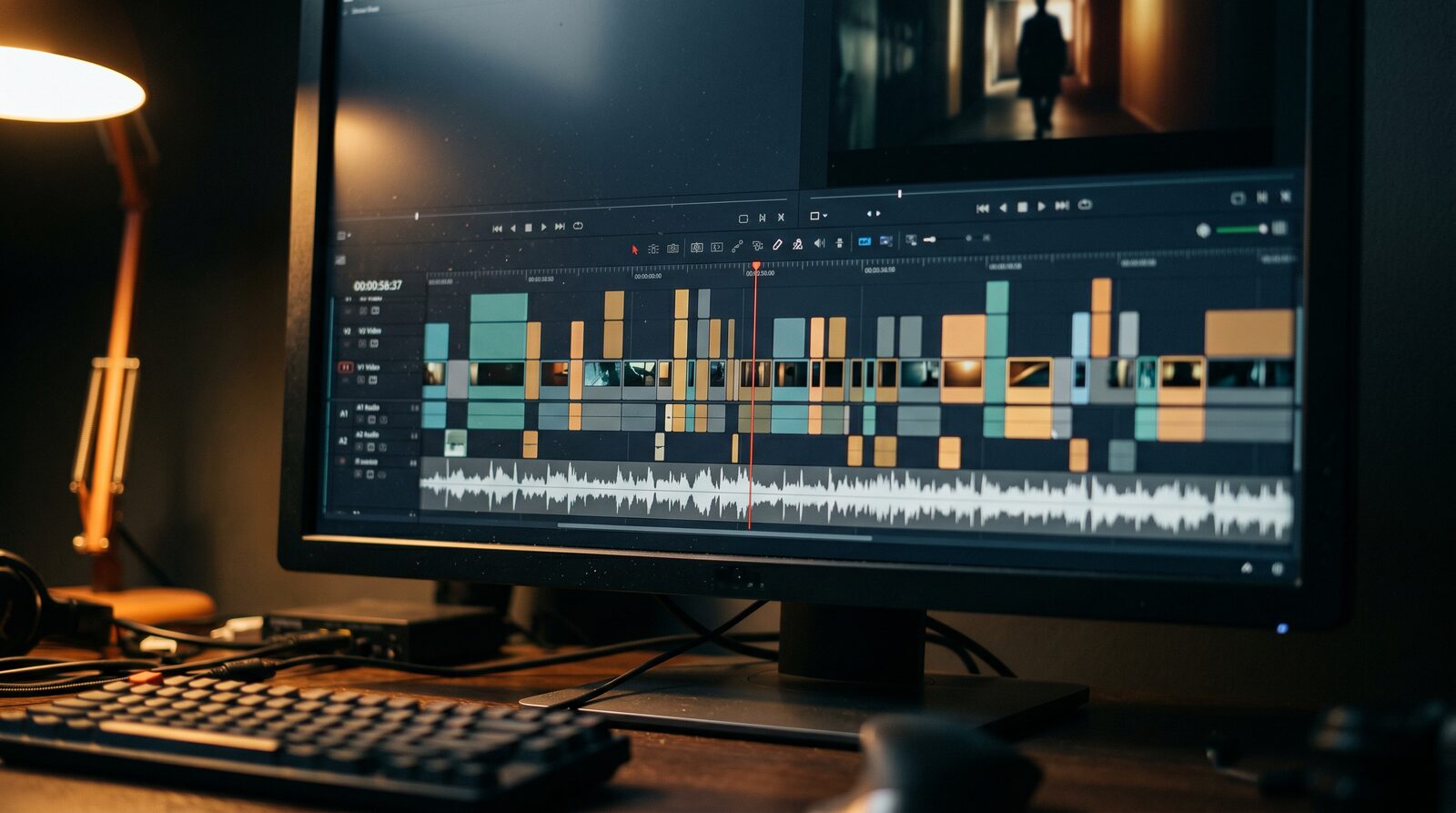
AIGE closes that gap inside the Canvas. Put a Video widget on your board and it holds a timeline: trim clips, put them in order, and make new ones with the platform's video models without leaving the board. When you need more than trimming, open the widget and you're inside a full editor with a multi-track timeline, AI tools on every clip, text, sound, and export. The quickest way in is aige.ws/canvas?open=video, which places a fresh Video widget and opens its editor.
1. The widget and the editor
On the board, the Video tool drops a widget with a preview, a strip of clips, and a small maker: write what happens, pick a model and a length, and press Make the clip. Videos you had selected when you picked the tool start the timeline, in the order they sit on the board.
Press Open editor (or double-click the widget) and the editor takes over the stage. The library sits on the left with seven tabs (Media, Make, Audio, Text, Effects, Looks, Moves), the preview in the middle, the inspector on the right, and the timeline along the bottom. Pick the shape at the top: 9:16, 16:9, 1:1, or 4:5 for the Instagram feed.
2. Bring in your media
The Media tab lists the videos and pictures already on your board, files you upload, and the clips made in this video. A click adds a tile to the main track, right after the selected clip or at the playhead. "On top" places it above the main track as picture-in-picture, and you can also drag a tile onto any lane. Pictures sit on the timeline as stills, and one button turns the board's pictures into a slideshow.
3. Make new clips with AI, right in the timeline
The Make tab has seven ways to create a clip:
From words: describe a shot and it's made for you.
Storyboard: one line per shot. Each line becomes a clip, in order.
From a picture: a start picture, with an optional end picture to land on.
Between two shots: a bridge that starts on one clip's last frame and lands on the next clip's first.
With references: Seedance takes pictures, clips, and sounds as references (Seedance 2.5 takes up to 30 pictures, 10 clips, and 10 sounds).
Copy a movement: Kling Motion Control plays a clip's movement with the character from your picture. The new clip is as long as the movement clip, up to 10 seconds when the character faces like the picture and up to 30 when it faces like the clip.
Restyle a clip: change how a finished clip looks with one sentence.
Pick a model and drag the length slider. Each model offers every second it can make: Seedance 2.5 runs from 4 to 30 seconds, Kling from 3 to 15, and Veo 3.1 steps between 4, 6, and 8. The price sits on the button before you spend anything, and it's the same number the charge uses. While a clip is being made it holds its slot on the timeline, so your cut doesn't shift under you. If you're deciding which model fits a shot, Kling vs VEO vs Seedance breaks down lengths, audio, and credit costs.
Clips already on the timeline carry their own AI tools in the inspector: Extend, Make another take, Restyle, and Copy its movement. You can also drag the ✦ grip past a clip's end to continue the shot; drag it all the way to the next clip and you get a bridge between the two.
4. Cut, trim, and finish the look
The toolbar over the timeline has Split, Delete, Duplicate, Replace, Freeze, Extend, and Detach sound, plus a snapping magnet, zoom, and Fit. The shortcuts are the ones you'd guess: S splits, ⌫ deletes, ⌘D duplicates, ⌘C, ⌘X and ⌘V copy, cut and paste at the playhead, and ⌘Z undoes. Select a clip and the inspector gives you Frame, Speed, Sound, Look, and Motion & animation. The rest lives in the library:
Looks: twelve filter presets (Vivid, Film, Noir, Teal & orange, and more), with fine sliders for brightness, contrast, saturation, warmth, fade, vignette, and blur.
Moves: transitions between clips (Fade, Dissolve, Flash, Slide, Push up, Zoom, Blur, Wipe), set per cut or for every cut at once.
Effects: timed effects on their own lane, like Shake, Zoom punch, Grain, Letterbox, and Black & white.
Text: style presets placed where they land in the frame, plus auto captions that turn speech into caption lines, with estimated timing you can adjust.
Audio: your own music or sound files, a voice-over recorded straight over the cut, and each clip's own sound, which you can detach to its own lane or mute.
Two listening tools save a lot of manual trimming, and neither spends credits: Cut the pauses removes the silences between speech in a talking-head clip, and Find the beat marks a music track's beats so you can cut to them.
Honest note: there's no built-in music library. The Audio tab works with sound you bring or record. Looks also rely on a browser feature Safari doesn't have, so they don't draw there.
5. Export
Export is free because it runs on your own computer. The finished cut plays through once on a hidden canvas and is recorded at 720p or 1080p, so a 30-second video takes about 30 seconds. On Chrome and Safari you get an MP4 (H.264 video with AAC sound); other browsers record WebM. When it's done, the file is uploaded, placed on the board next to the video, and ready to download.
Honest note: keep the tab open while it records. Switching away pauses the export until you come back.
Quick answers
Question | Answer |
|---|---|
Where is the video editor? | Inside AIGE Canvas: put a Video widget on the board and open it, or go straight to aige.ws/canvas?open=video. The old /vediting address takes you there too. |
Do I need an account? | Yes. The Canvas is for signed-in users. Making clips spends credits (the price shows on each button); editing and export are free. |
Which AI video models can I use in the editor? | Kling V3, Kling 3 Turbo, Kling o3, Veo 3.1, Seedance, Seedance 2.5, Omni Flash, and H3 Max, plus Kling Motion Control for copying a movement. |
How long can one clip be? | Up to 30 seconds with Seedance 2.5, 15 with Kling, Seedance, and H3 Max, 10 with Omni Flash, and 8 with Veo 3.1. |
What export formats are supported? | MP4 (H.264 with AAC sound) on Chrome and Safari, WebM on other browsers, at 720p or 1080p. |
Can I undo a mistake on the timeline? | Yes, with ⌘Z and ⇧⌘Z. A clip that finished making while you worked stays finished when you undo around it. |
Does a generated clip drop straight onto the timeline? | Yes. It holds its slot while it's being made and fills in when it's ready. |
Do this next
Open aige.ws/canvas?open=video, add one clip from the Media tab, then use Make → From words to add a second shot and drag the ✦ grip to bridge the two. If you're starting from a still photo instead of existing footage, turning a portrait into a cinematic video walks through that first step. And if the same character needs to show up consistently across every clip you make, the guide to consistent AI characters covers how to keep that face locked in.



Comments
Be the first to comment.