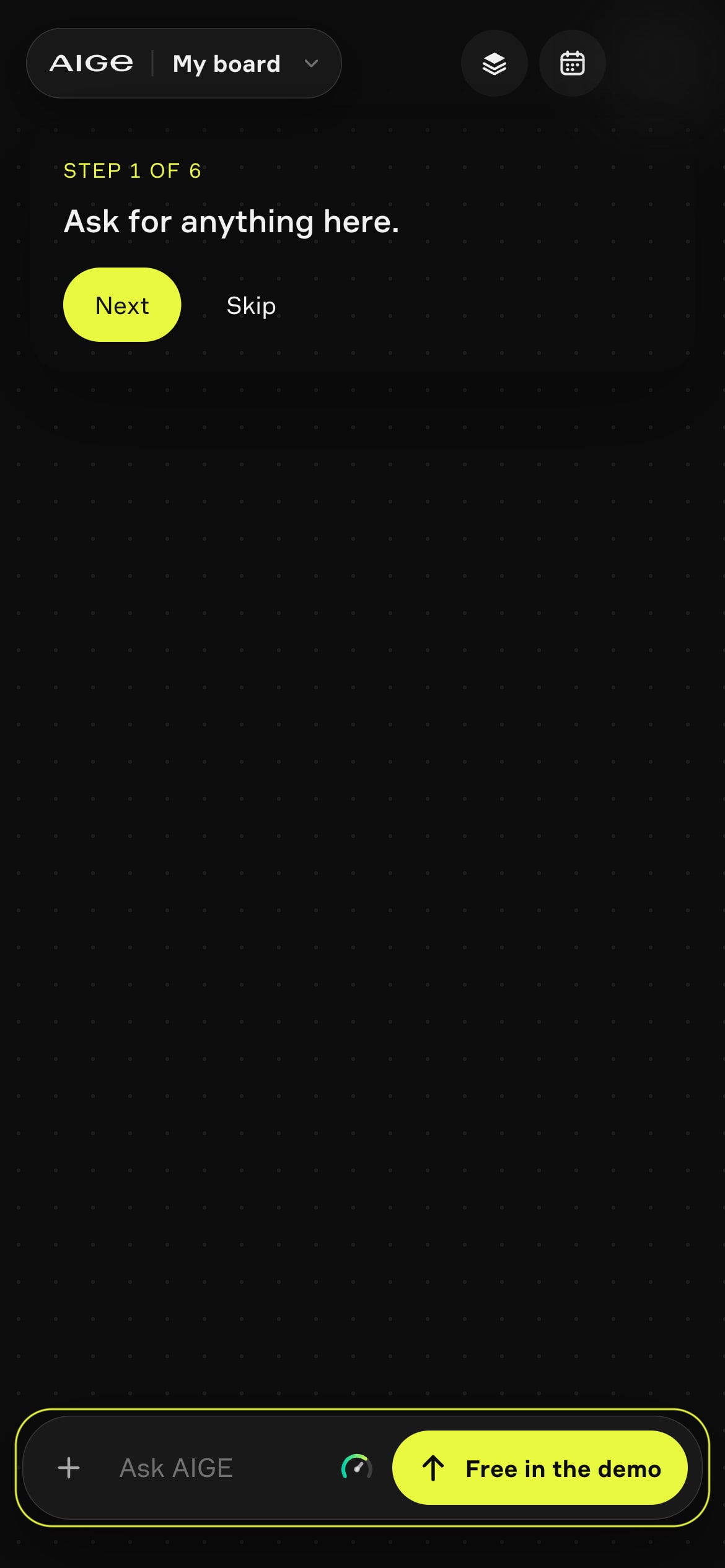
The AIGE phone board is one screen: a top bar for your project, layers and calendar, a board of pictures and clips, and an Ask AIGE bar that opens a thinking dial and a Make sheet. You can try it signed out at aige.ws/?try=1 on a phone, where it runs as a demo.
How to try the phone board
Open aige.ws/?try=1 on a phone while you are signed out. The page picks the phone layout by screen width, 768 pixels or narrower, and reads it once when the page loads.
What opens is a demo board. It lives in your browser, not in an account, and stays on your device for 24 hours. A card under the top bar walks you through six steps: Ask, Thinking, Make, Send, then a prepared picture and a prepared clip. Skip jumps to the sign-up sheet, and if you close the sheet a "Sign up to make your own" pill stays on the board.
The top bar: project, layers, calendar
The picture at the top of this page shows the bar. On the left is a pill with the AIGE mark, the board's name ("My board" until you open a project) and a small down arrow. Signed in, it opens the Projects sheet: My board ("Recent and everything outside projects"), each project with a thumbnail of its first picture, New project, and doors to Chats, the Vault and the Calendar. In the signed-out demo it does not open.
Layers turns the board into a list, top of the stack first, with each frame's pieces under it. Every row has an eye to hide a piece without deleting it, a lock and a grip you drag to reorder. Tap a row to pick that piece and open its Design sheet.
Calendar opens "This week": today and the next six days, with your scheduled posts. An empty week says "Nothing booked. Hold a piece on the board and pick Post." With a channel connected, that line ends ", or let AIGE plan the week", and a "Plan the week with AIGE" button sends an agent turn and shows its starting price. Without a channel, the button reads "Connect a channel" and the line stops at "pick Post".
Your avatar sits at the right end, signed in or not (in the demo screenshot it is a barely visible circle beside Calendar). It opens the You sheet. Signed in, that sheet holds your balance with Top up and a Channels row, and a ring around the avatar reflects your credits. A Share button appears beside Layers only while board sharing is switched on for your account.
The board: sections you swipe through
Under the bar, the board is read as sections that snap into place as you scroll, each a row of pieces that snaps sideways: Recent (your latest generations that are not placed yet, on My board only), one section per frame, "On the board" for loose pieces, Widgets for carousel decks and, for anyone with a week plan from AIGE's /start flow, This week. The demo starts empty. The only things that arrive are the prepared picture and clip.
Tap a piece to select it, tap again to open it full screen, or hold about half a second for its menu. With one piece picked, the bottom bar swaps for a dock of up to five actions; a picture gets Open, Edit, Variations, Post and More, and an action that costs credits shows its price before you press it. On a laptop the same work happens on the canvas, and AIGE on phone vs laptop sets the two side by side.
The Ask AIGE bar and the composer
The bar at the bottom, outlined in yellow in the picture at the top, holds a plus, the field that says "Ask AIGE", a small dial and a yellow Send button. Every part opens the composer, a sheet that rises over your keyboard. The plus opens Add: Take a photo, Photos, From my things, then skills (or presets in Manual). The dial opens the thinking panel.
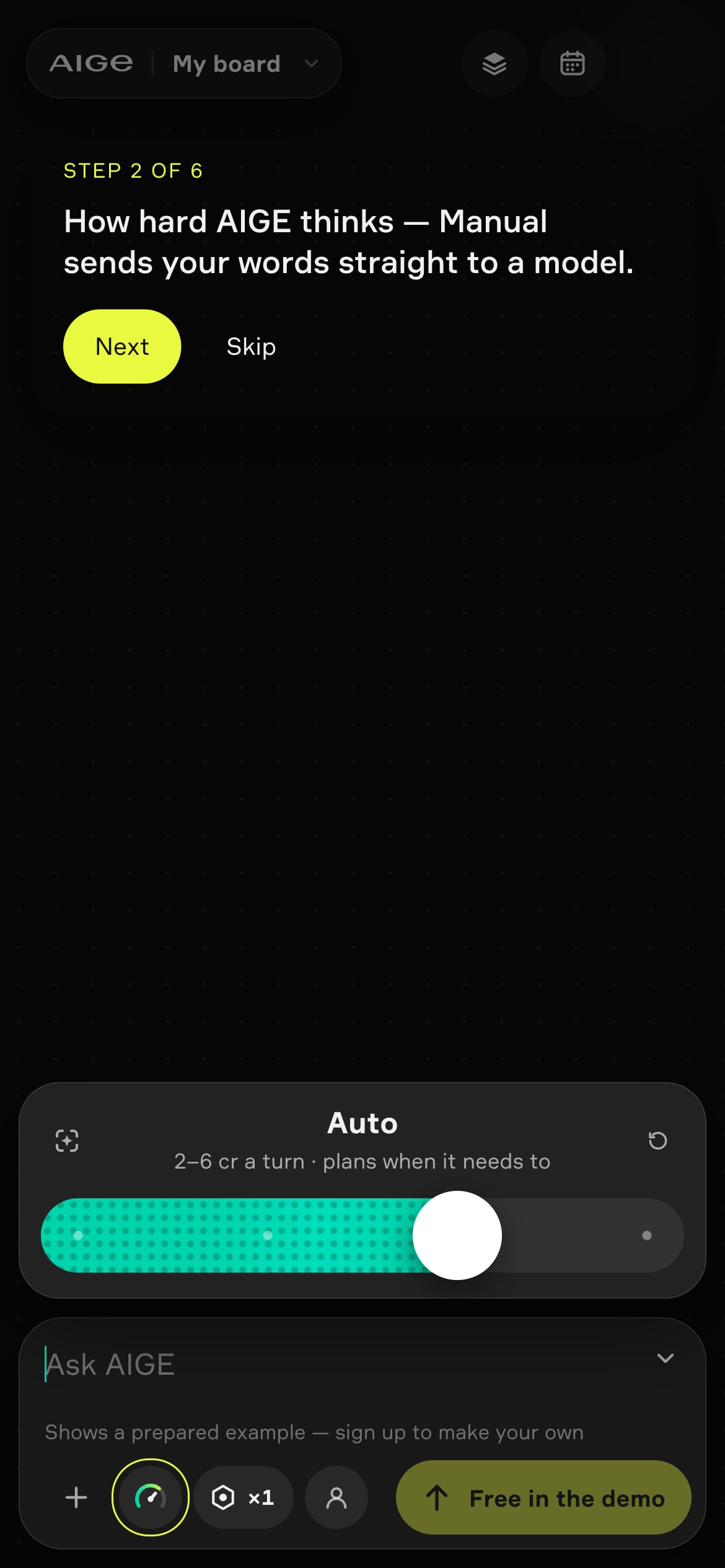
In the open composer, the controls under your words are the plus, the dial, a hexagon marked ×1 and a person icon, then Send. The hexagon is the model pill. It shows how many pictures you will get (or a clip's seconds), adds the model's name in Manual, and opens the Make sheet. The person icon is "Who's in it": one of your saved characters or Nobody, kept for that project.
The thinking dial: how hard AIGE works
The dial has four stops: Manual, Fast, Auto and Deep. Manual sends your words straight to the model you picked, with no agent in between. The other three hand your message to the AIGE agent, which can plan, make things and answer. A new account starts on Auto.
Each stop prints a price line. Auto's reads "2–6 cr a turn · plans when it needs to", which is the dial's own label. The agent's fee is a base and then metered, so that range is not a cap: a turn starts at 2 credits on Fast and Auto and at 6 credits on Deep, and the Fast and Deep lines say "from" those numbers. That is the agent's own fee for thinking. The picture or clip you ask for is priced on top of it in the Make sheet.
The Make sheet: what to make and what it costs
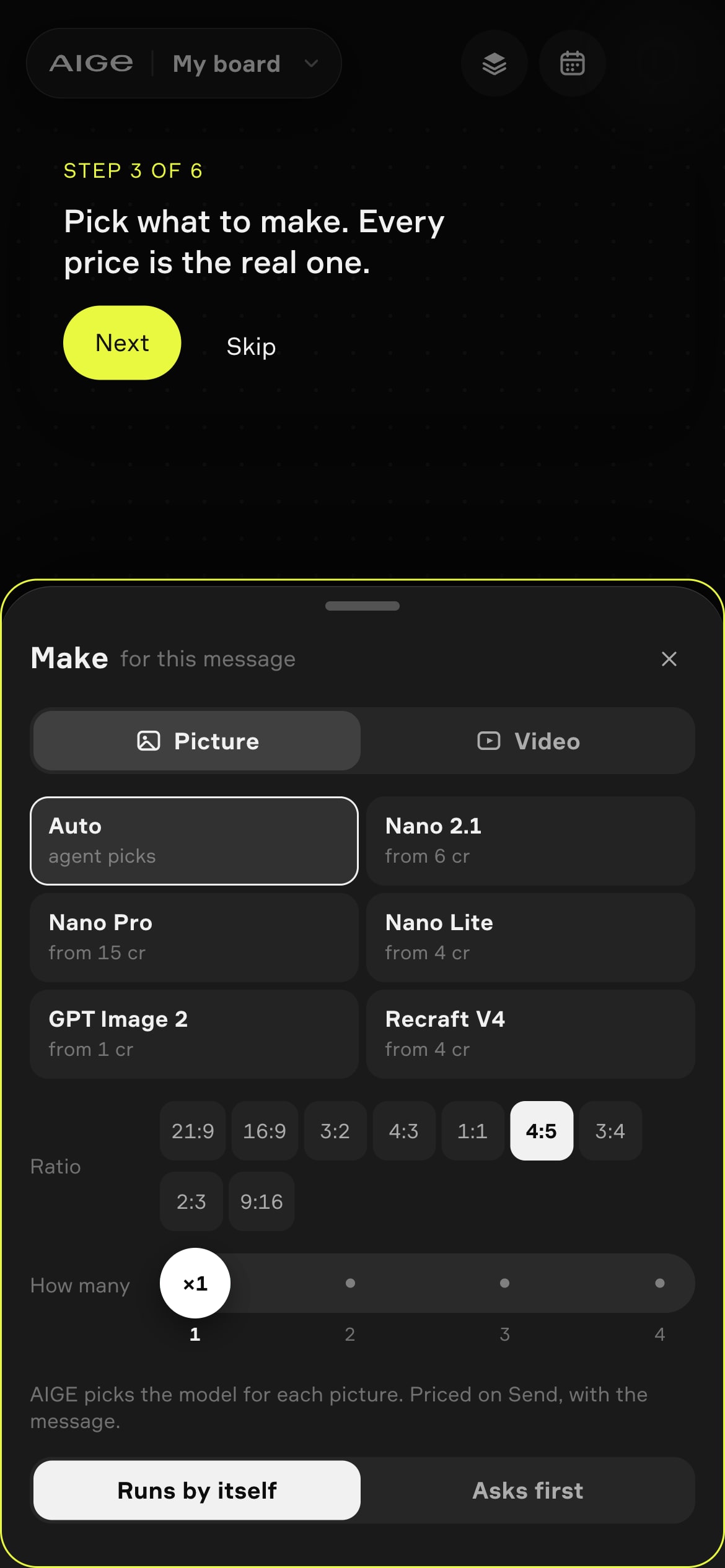
The Make sheet ("Make for this message") slides up from the model pill. Picture and Video tabs sit on top, and under them is a grid of models with a price line on each. Pick a tile and the rows below change to what that model takes. In Manual there is no Auto tile, because nothing would pick the model.
Tile | The screen says | That price assumes |
|---|---|---|
Auto | agent picks | The agent chooses per picture; priced on Send |
Nano 2.1 | from 6 cr | The smallest size, 0.5K |
Nano Pro | from 15 cr | The 1K size |
Nano Lite | from 4 cr | One price, no size row |
GPT Image 2 | from 1 cr | Low quality at 1K |
Recraft V4 | from 4 cr | One price, no size row |
"From" means the model's cheapest setting. Bigger sizes and higher quality cost more: a 1K Nano 2.1 picture is 8 credits, and GPT Image 2 alone has a Quality row (Low, Medium, High). Pick a specific model and the line under the rows shows the sum for your settings, "plus the message" when an agent runs, an exact total in Manual. On Auto it says the model is picked for you and priced on Send.
Below the tiles come the rows that model takes. Ratio offers nine shapes from 21:9 to 9:16 on every tile except Recraft V4, which keeps five, with 4:5 selected by default; the aspect ratio guide says what each is for. Size shows for Nano 2.1, Nano Pro and GPT Image 2. How many is a slider from 1 to 4. The Video tab swaps in clip models with Length, Sound and Ratio rows.
The last control switches between "Runs by itself" and "Asks first", and appears only under an agent stop. Runs by itself lets the agent go ahead. Asks first holds the turn for your approval before it spends; the canvas calls the same setting "Ask me before it spends". Model lists and prices live on the AI image generator page.
What Send does
Under Manual, Send goes straight to the model at its own price and shows the exact number. Under Fast, Auto or Deep it goes to the agent, with your Make choices passed along as settings. The button then reads "from", the agent's turn price and the price of any model you picked; with Make on Auto it is the turn price alone, 2 credits on the Auto stop. Send stays dim until the field has words. If your balance cannot cover the price, it turns into Top up.
In the demo the button reads "Free in the demo", and a line above it says "Shows a prepared example — sign up to make your own." Send there places a numbered frame titled "Prepared example" and fills it with a prepared picture, whatever the box holds. No model runs and no credits move.
Your first minute on the board
Ask. Step 1 rings the bar: "Ask for anything here." You can tap the field, but you do not have to type: the guide fills the box for you at step 4.
Thinking. Step 2 opens the dial, and the line under each stop says what it does and what a turn costs.
Make. Step 3 opens the Make sheet: "Pick what to make. Every price is the real one."
Send. Step 4: "Press Send to see a prepared example." The guide puts a prepared prompt in the box, replacing anything you typed, so Send is lit. The frame shows on the board while the file loads.
Picture, then clip. The last two steps are labeled Prepared example. After the picture the card offers "Show the clip". After the clip it says "Your own pictures and clips start from your words." and its Make your own button opens sign-up.
Honest note: the phone board sits behind a switch that is off by default and is switched on per account, so a signed-in phone opens it only when that switch is on for the account, and otherwise opens a different home screen, the grid. This page walks through the signed-out demo at aige.ws/?try=1. Its board is a prepared example, Send there does not make your own pictures or clips, and it spends no credits. The composer, the dial and the Make sheet are the same ones a signed-in phone gets, with prices from the same credit table; only Send, its price label and the prepared prompt the guide drops in the box differ. Layers and Calendar are described from the code, because the screenshots here do not open them.
Quick answers
Question | Answer |
|---|---|
What is the AIGE board on a phone? | A phone home screen for AIGE: a top bar with project, layers and calendar, a board of sections you swipe through, and an Ask AIGE bar that opens a composer with a thinking dial and a Make sheet. |
Can I try the phone board without an account? | Yes, on a phone at aige.ws/?try=1 while signed out. It is a demo: Send shows a prepared picture and clip, and no credits move. |
Does my phone get this layout when I sign in? | Only if the phone board is switched on for your account. Until then a signed-in phone opens a different home screen, the grid. |
What does the dial next to Ask AIGE do? | It sets how hard the agent works: Manual (no agent), Fast, Auto or Deep. Auto's line reads "2–6 cr a turn", which is the dial's own label. Fast and Deep start at 2 credits and 6 credits a turn, metered above that. |
What does “from 6 cr” on a model tile mean? | The model's cheapest setting. Nano 2.1 is 6 credits at 0.5K and 8 credits at 1K. Pick a specific model and the sheet shows the sum for your settings. |
What do Runs by itself and Asks first mean? | Runs by itself lets the agent go ahead. Asks first holds the turn for your approval before it spends. The switch appears under Fast, Auto and Deep, not in Manual. |
What do Layers and Calendar do? | Layers lists everything on the board with hide, lock and reorder controls. Calendar shows this week's scheduled posts and, with a channel connected, lets AIGE plan the week. |



Comments
Be the first to comment.