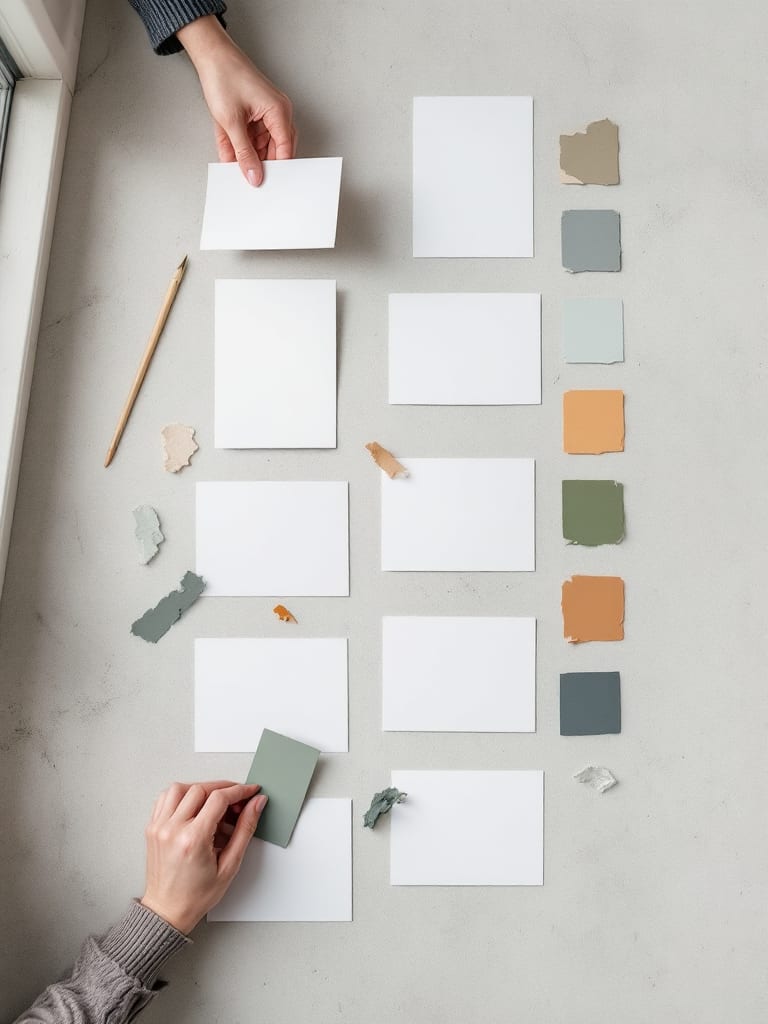
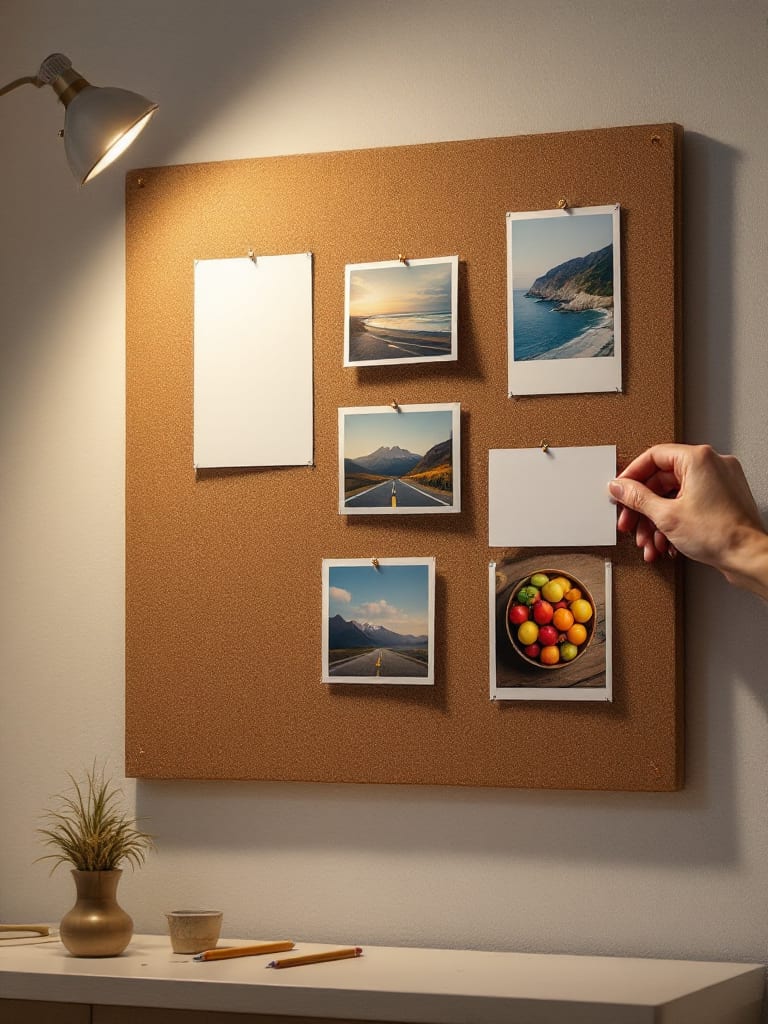
An AI canvas is an open board where AI results land as pieces you can move, compare and build on, instead of as replies in a thread. A chat window keeps the order of the conversation. A board keeps the work, laid out your way. AIGE's laptop Canvas is a board with a chat built in.
What an AI canvas is
Three parts make a canvas. First, a surface you can pan and zoom, bigger than one screen. Second, pieces on that surface (pictures, clips, text, shapes, notes) that stay where you put them. Third, an AI you ask in plain words, whose results arrive as new pieces on the same surface.
The phrase has no standard definition, so this article says what it means by it. The AI behind a canvas can be the same models you would use in a chat. What makes it a canvas is where the result goes and what you can do with it once it has landed.
A board and a chat window, side by side
What a chat gives you. A running thread, with the order of events kept for you. You describe, the AI answers, you adjust. That suits asking and refining, and any job with one outcome you keep improving. The cost is that earlier attempts scroll away, and setting two results next to each other means scrolling up and holding one in your head.
What a board gives you. Every attempt as its own piece, where you can see it with the others. You can drag the version you like next to the reference, group four candidates, pin a note to one, or zoom out to the whole job. The cost is housekeeping: a board you never tidy gets crowded, and the order a thread kept for you is now yours to keep.
Neither is the better tool in general. A one-answer question suits a chat. A job with many candidates or many formats suits a board. We have not measured either, and this article declares no winner. AIGE's Canvas does not make you pick one: the Ask AIGE island on the board is a chat. Your words go to the agent, or straight to a model when the dial is on Manual, and the results land on the board.
What AIGE's Canvas holds
Everything in this article is the laptop Canvas, the screen a signed-in laptop opens as its home. The board can hold:
Pictures and clips, made in AIGE or brought back from the Vault, and your own pictures placed with Place image.
Decks, the multi-slide carousels AIGE builds. A deck shows as one card with its cover. Double-click it to open its slides on the board; Open full editor opens the builder.
Notes and text. Sticky notes in six colors, plain text, and comment threads pinned to a spot.
Frames, shapes and drawings. Artboards, shapes, arrows that stay attached to what they connect, and freehand pen strokes.
Widgets. A Video widget for clips on a timeline, and a calendar of your posts.
The part that matters most for comparing attempts is where results land. Each generation becomes one numbered section: a frame titled with the words you sent, with a counter that reads something like "2 of 4 made" while the pictures arrive. Each picture's spot is reserved first, and a picture that lands fills its spot without moving its neighbors. Pictures of the same shape share a row, up to three to a row, and a different shape starts the next row. If one fails, its spot becomes a card that says it didn't finish, and the others stay.
Sections do not pile on top of each other. A new section goes into free space, and a generation that used a picture from the board as its reference lands to the right of that picture, so the original and the new versions sit together. Earlier sections are not moved or replaced, and a later arrival never reflows pieces you have already placed. A board is saved in your browser and mirrored to your account. Each project has its own board.
Ask AIGE: the island and the dial
The island sits at the bottom of the board as a pill that reads Ask AIGE. Click it or press / and it opens into a field. Along its bottom row:
Plus. Upload a picture or file, pick something From my things, or use a skill.
The dial. Four stops: Manual, Fast, Auto and Deep. Manual means no agent, and your words go straight to the model you chose. The other three send your request to the AIGE agent, which can plan and call tools. A Fast or Auto turn is priced from 2 credits and a Deep turn from 6 credits, with the pictures or clips it makes priced on top.
The hexagon, Generation settings. On a Fast, Auto or Deep turn it opens the Make sheet for this message: a Picture tab and a Video tab, a model grid that starts with Auto ("AIGE picks"), and rows for ratio, size and how many. On Manual the sheet is shorter and has no Auto tile. Which image model to pick in AIGE covers the models and their prices tile by tile.
Open the chat panel (⌘B). The island grows into the full chat panel.
Send. The price is on the button. An agent turn shows ≥ before the number, because the agent's fee is a base plus metering and the pictures or clips it makes are added on top. Manual shows the exact number.
The agent can read the board. On a Fast, Auto or Deep turn, AIGE sends the agent a plain-text summary of the board with your message: one line per piece with its kind, name, position and size, plus the start of the prompt behind a picture, and whatever you have selected listed first and in full. The summary is capped at 60 items and 6,000 characters, so on a crowded board the agent reads your selection closely and the rest in part. In Manual there is no agent, so no summary is sent.
Two small helpers use the board. Type @ and the island lists AIGE's tool families (Research, Writer, Images, Video, Carousel, Schedule) and a few named pieces from your board. With the field empty, two starter chips, Two more like this and Two night versions, fill it with a request about the selected picture.
The tool bar, slot by slot
The tool bar has seven slots, then Undo and Redo. A slot shows one tool and opens a menu of its family.
Slot | What is in it |
|---|---|
Move | Select (V) and Hand (H). Holding Space pans too. |
Frame | An artboard at a real post size. The menu has eight presets in two groups, Social media (Instagram post, Story / Reel, YouTube thumbnail and four more) and Print (A4). |
Shapes | Rectangle, ellipse, line, arrow and twelve ready shapes, plus Place image for your own photo or logo. |
Pen | Freehand drawing (P). It stays on until you pick another tool. |
Text | Click and type (T). Double-click any text to edit it. |
Notes | Comment (C) pins a thread anywhere and closes when resolved. Sticky note (S) comes in six colors. |
Make | Things AIGE makes with you: New post, Next week, Post preview, Calendar and Video, plus a pipeline row. New post and Next week put a brief in the chat; nothing is made until you send it. Video places a Video widget. |
Undo and Redo sit at the end, labeled ⌘Z and ⇧⌘Z. The tool bar's Make menu is not the Make sheet in the island: the menu places things on the board, and the sheet chooses what a request will make.
The inspector, the Vault and projects
The inspector. Two tabs, Design and Layers, sit in the pill at the top right of the board. Design works on whatever you have selected: alignment, distribute (with three or more picked), position, size, and rotate and flip. For a picture it adds an AI edit block with Remove the background, Make 2 variations and Write its prompt, each with its price on the button. Two variations at 1K are 8 credits each, so that button reads 16 credits before you press it, and the price on the button is the one that counts. A picture also gets Details (type, model, ratio, size, resolution, quality, when it was made and whether it was generated in AIGE or uploaded) and the prompt behind it with a copy button. A row AIGE was not told is left out instead of guessed. A picture that came out of a chat message has a Show in chat button. Layers works with nothing selected and lists everything on the board, with hide, lock, rename, filter and drag to reorder.
The Vault. A panel that takes over the chat panel and lists your generation history. Search by prompt or model, filter by All, Images or Video and by Any time, Today, 7 days or 30 days, and click a tile or drag it onto the board. That is how something you made last week comes back onto today's board. It opens from the project button, the AIGE mark with your project's name, at the top left of the board or in the chat panel's head when the panel is open.
Projects. A project owns its board and its chats, and switching projects swaps both. The project button's menu lists your projects and the chats in the open one, with New project, New chat, Vault and Calendar. All projects opens a page of cards, each showing the project's name, a few pictures from its board, how many chats it holds, when it last changed and whether something is being made in it right now.
Where this works, and what it costs
The Canvas described here is the laptop one. The phone has its own board, which AIGE switches on per account, and a signed-out demo on a phone at aige.ws/?try=1. AIGE on a phone versus a laptop lists what each does. The Video widget has its own editor, walked through step by step in turn a photo into a video with AI.
The tool bar's drawing and arranging tools carry no price. The buttons that make something do. Send shows the turn's starting price on a Fast, Auto or Deep turn and the full price in Manual, and the inspector's AI edit buttons and the Video widget's Make button show their prices before you press them. A new account starts with 0 credits, and making pictures or clips needs credits from a paid plan.
Honest note: this article was written from AIGE's code as read on 28 October 2026, not from a recorded session, so it shows no screenshots and rates no output. The comparison with a chat is a trade-off, not a verdict. It covers the laptop Canvas only; the phone board is switched on per account. AIGE changes its screens, so a label may differ by the time you read this.
Quick answers
Question | Answer |
|---|---|
What is an AI canvas? | An open board where AI results land as pieces you can move, compare and build on. It has a surface you can pan and zoom, pieces that stay where you put them, and an AI you ask in plain words. |
What is the difference between an AI canvas and a chat window? | A chat keeps a thread in order, and earlier attempts scroll away. A board keeps each attempt as its own piece that you can arrange. Neither wins in general, and AIGE's Canvas has both: the Ask AIGE island is a chat whose results land on the board. |
What is an AI canvas generator? | A canvas that makes pictures or clips from your words and puts them on the board. In AIGE that is the Ask AIGE island on the Canvas, which sends your request to the agent or, on Manual, straight to a model. |
Is AIGE's Canvas an AI design tool? | It has design tools: frames at real post sizes, shapes, text, a pen and alignment, plus AI that makes the pictures and clips. We have not compared it with other design tools here. |
What can I put on the board? | Pictures, clips, decks, sticky notes, text, comments, frames, shapes, drawings, a Video widget and a calendar. |
Does the Canvas work on a phone? | This article describes the laptop Canvas. Phones have their own board, switched on per account. The phone-versus-laptop guide has the details. |
What does it cost to use the Canvas? | The tool bar's tools carry no price. A Fast or Auto agent turn is priced from 2 credits and a Deep turn from 6 credits, plus what it makes, and Manual charges the model's price only. A new account starts with 0 credits, and plans start at $8.55 a month. |
Can I try it without signing up? | As of 28 October 2026, a signed-out visit to the laptop Canvas opens a demo board whose Send plays a prepared example and makes nothing. The no-sign-up guide explains what the demo does. |


Comments
Be the first to comment.