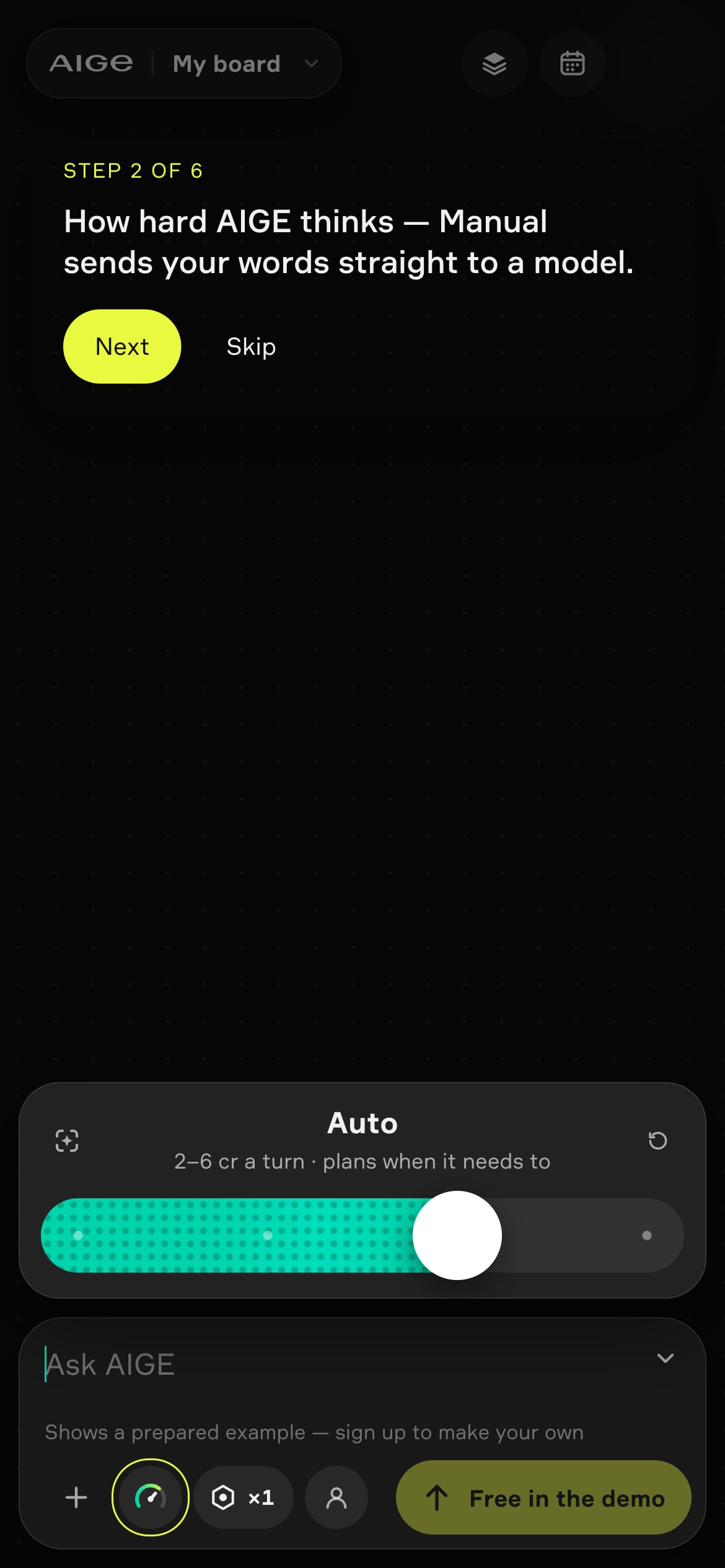
AIGE's phone board and laptop canvas ask the same way: plain words, a thinking dial, Make settings and a priced Send button. They split after that. The phone board is a scrolling stack with a dock for each piece. The laptop canvas adds a tool bar, a full inspector and a video editor.
How do you open each one?
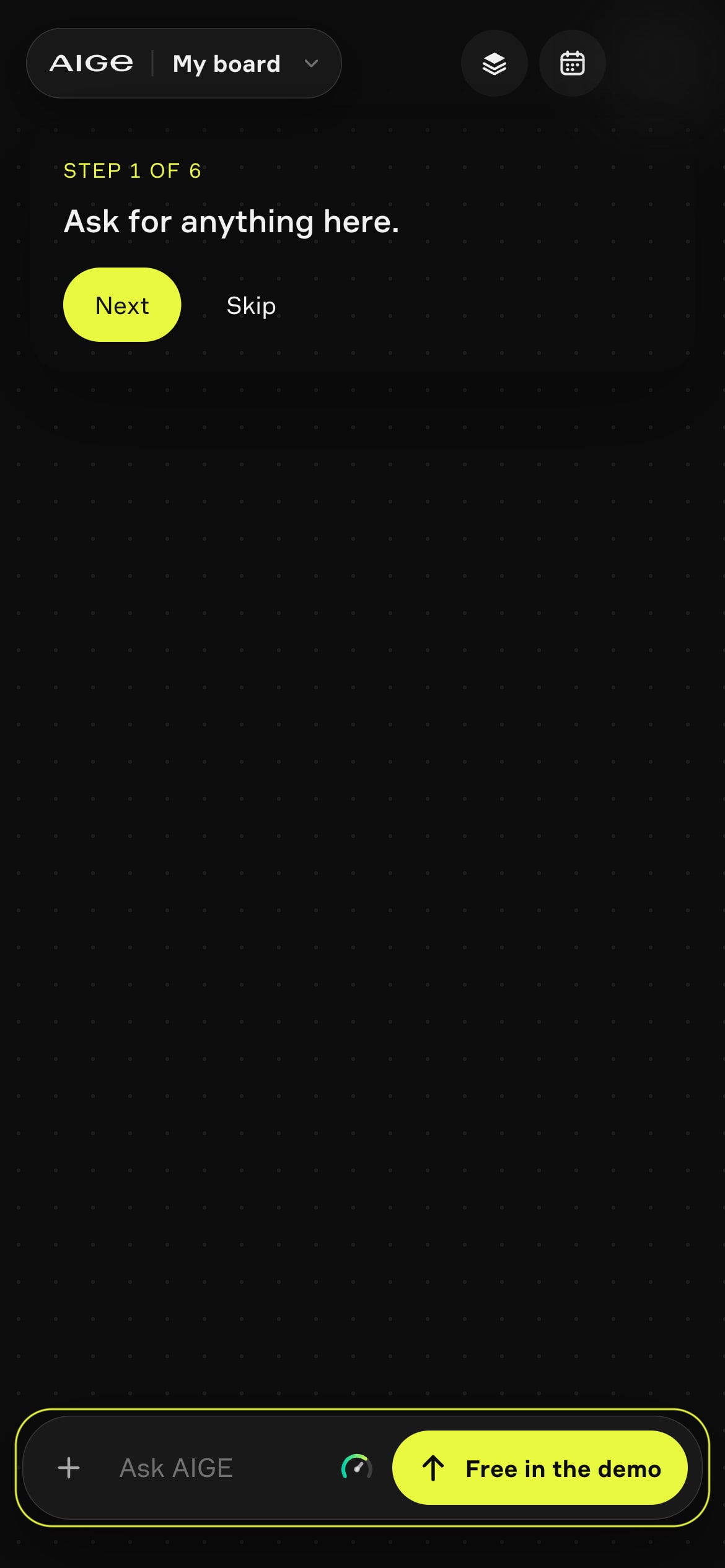
The phone board is a demo for now. Open aige.ws/?try=1 on a phone, signed out, and a six-step guide points at the ask bar, the thinking dial, the Make settings and Send, then shows a prepared picture and clip. Send makes nothing here. It plays a prepared example, and the composer says "Shows a prepared example — sign up to make your own."
Open the same link on a laptop and you land on the canvas demo, with the same guide. Signed in, a laptop opens the canvas. A phone opens the board only if it is switched on for that account, and every other phone gets the grid home page.
What is the same on both?
Ask in plain words on either one and five things line up.
The thinking dial. Both draw the same four stops: Manual, Fast, Auto and Deep. Auto's line in the cover screenshot reads "2–6 cr a turn · plans when it needs to", which is the dial's own label. The agent's fee is a base and then metered, so a turn costs from 2 credits, metered above that, and the range is not a cap. Anything the agent makes is priced on top. Manual has no agent: your words go straight to a model.
Make settings. A Picture and Video switch, a grid of models with a "from" price on each, then ratio, size, count, length and sound where the model takes them. The laptop's panel is the phone's Make sheet, reused.
A price on Send. The laptop's yellow button reads ≥2 cr in the screenshot below. The phone's says "from" and a number for an agent turn, and the exact sum in Manual. The demo swaps both for its own label.
The first-run guide. One six-step guide, with the same wording on both.
One board, once signed in. A phone that has the board opens your project's board the way the canvas does and keeps it synced to the cloud. A frame holding pictures made on the laptop shows up on the phone as a section.

What does the phone board do differently?
The phone does not draw an open canvas. It reads the board as sections that snap up and down, each a row of pieces that snaps sideways: Recent for results not yet on your default board, one section for each frame that holds pictures, On the board, Widgets for carousel decks and, for anyone with a week plan from AIGE's /start flow, This week. Pinch closed to go from one piece per screen to two across, then four. How you pick, hold and open a piece is walked through in the AIGE board on your phone. Next to the laptop, three things differ.
Fewer kinds of piece. Only pictures, clips and decks become pieces. Text, shapes and drawings do not show up as pieces, though the Layers sheet lists them, and comment threads are not synced to the phone at all.
A dock, not an inspector. A picked piece swaps the bar for a short row of actions, and an action that costs credits shows its price before you press it. Variations makes two pictures at 8 credits each. Edit is not an editor: it opens the composer with the picture attached and "Change this:" typed, and you finish the sentence. A clip's Extend does the same on Video with "Extend this clip:" typed. A deck is a card with its cover, and the viewer shows only that cover. The demo board hides every action that spends.
A different Add sheet. The + sheet offers Take a photo (the phone's camera), Photos and From my things, then a row of Skills, or of Presets when the dial is on Manual. The composer also carries a Who's in it chip that sets a saved character for the project. The laptop island has no such chip.
What does only the laptop canvas have?
The laptop is an open board you pan and zoom. Here is what it adds to the phone board.
A tool bar. Seven slots, then undo and redo: Move (Select and Hand), Frame, Shapes, Pen, Text, Notes and Make. Frame opens presets grouped as Social media and Print. Shapes holds rectangle, ellipse, line, arrow and twelve ready shapes, plus Place image. Notes holds Comment and Sticky note. The phone board has no tool bar, and nothing in its code adds a frame, a shape, a pen stroke or a comment.

A fuller inspector. It has Design and Layers tabs. Design covers the same ground as the phone's Design sheet (position, size, fill, stroke, effects, order) and adds align and distribute, rotate and flip, a Resize to preset menu for frames, and masks. Layers adds rename and a filter. A selected picture also gets an AI edit block: Remove the background (5 credits), Make 2 variations, Write its prompt (1 credit) and Turn into a clip, which hands the picture to the chat.
A video editor. Make, then Video, places a Video widget on the board, and the editor is what you open from it: a Media, Make, Audio, Text, Effects, Looks and Moves library, a preview, an inspector and a timeline. Export records the cut in your browser tab at 720p or 1080p, as an MP4 (H.264) where the browser can record one and as WebM where it can't. On the phone board a clip is watched, extended through the composer or downloaded.
Carousel slides. Select a deck and Open slides opens the full carousel builder over the board. On the phone you see the deck's cover.
A wider model list. When you pin a model for an agent turn, the laptop's picker offers the whole catalog. The phone's Make sheet offers a curated subset. Recraft Flash and FLUX Pro for pictures, and Kling V3 Fast, Omni Flash and H3 Max for clips, are on the laptop list only. Picture models and their prices are on the AI image generator page.
The comparison, row by row
Job | Phone board | Laptop canvas |
|---|---|---|
Layout | Sections that scroll up and down; pinch for 1, 2 or 4 pieces across | An open board you pan and zoom, with frames |
Asking | A bar, then a composer: +, dial, model pill, Who's in it, Send | The Ask AIGE island: +, dial, generation settings, chat toggle, Send |
Adding a reference | Take a photo, Photos, From my things | Upload a picture or file, From my things, Use a skill |
Models you can pin | A curated list in the Make sheet | The whole catalog for an agent turn |
Changing a picture | Edit through the composer, Variations, the Design sheet | The AI edit block and the inspector |
Arranging and styling | Position, rotate, size, corners, opacity, blend, fill, stroke, effects, order | The same, plus align, distribute, flip, preset sizes and masks |
Drawing and layout | No tool bar | Frames, shapes, pen, text, comments, sticky notes |
Video | Watch, Extend, Download | An editor with a timeline; export at 720p or 1080p |
Layers | A sheet: hide, lock, drag to reorder, tap a row for Design | A tab: the same, plus rename and filter |
Calendar | A Calendar button: week and agenda | Make, then Calendar: a widget on the board |
Which one should you start on?
Start on the phone board when the job is to ask for pictures and clips, look through what came back and nudge a piece with your thumb. Start on the laptop canvas when the job needs the tool bar: laying work out in frames at a post size, adding text and shapes, masking, cutting a clip on a timeline or opening a carousel's slides.
Because a phone with the board reads the same project board as the laptop, you can begin on one and finish on the other. Pictures, clips and decks cross over, and a frame holding them shows as a section. Text, shapes and comments are not drawn on the phone.
Honest note: the phone board is behind a switch that is off by default and is switched on per account, so a signed-in phone can open a different home, the grid, until the board is switched on for that account. This article compares the phone board demo (aige.ws/?try=1, signed out, on a phone) with the laptop canvas, and describes the board's actions as the code builds them. The demo makes nothing and hides every action that spends. Tools behind separate switches that are off, and posting to channels, are left out. Buttons and prices change, so trust the screen you are on.
Quick answers
Question | Answer |
|---|---|
Can I use AIGE on my phone? | Yes. Anyone can try the phone board as a signed-out demo at aige.ws/?try=1 on a phone. A signed-in phone opens the board only if it is switched on for that account, and otherwise opens the grid. |
Does the phone board have the same tools as the laptop canvas? | No. It has no tool bar, so no frames, shapes, pen or comments. It has the composer, a dock for each piece, a Layers sheet and a Design sheet. |
Can I edit video on my phone in AIGE? | Not on a timeline. On the phone board a clip opens in a viewer, and its dock offers Extend through the composer and Download. The video editor with a timeline is on the laptop canvas. |
Do prices differ between phone and laptop? | Both read one credit table. The phone's Send says "from" and a number, the laptop's says ≥ and a number, and Variations is two pictures at 8 credits each on both. See pricing for plans. |
Can I open the laptop canvas on a phone? | The canvas page is still at /canvas on a phone, with a narrow-screen layout up to 820 px wide. It lays itself out for touch, though the grid is the page AIGE built and tuned for a phone. |
Why does my signed-in phone show a different home? | The phone board is switched on per account and is off by default. Until it is on for your account, a signed-in phone opens the grid home page at aige.ws. |

Comments
Be the first to comment.