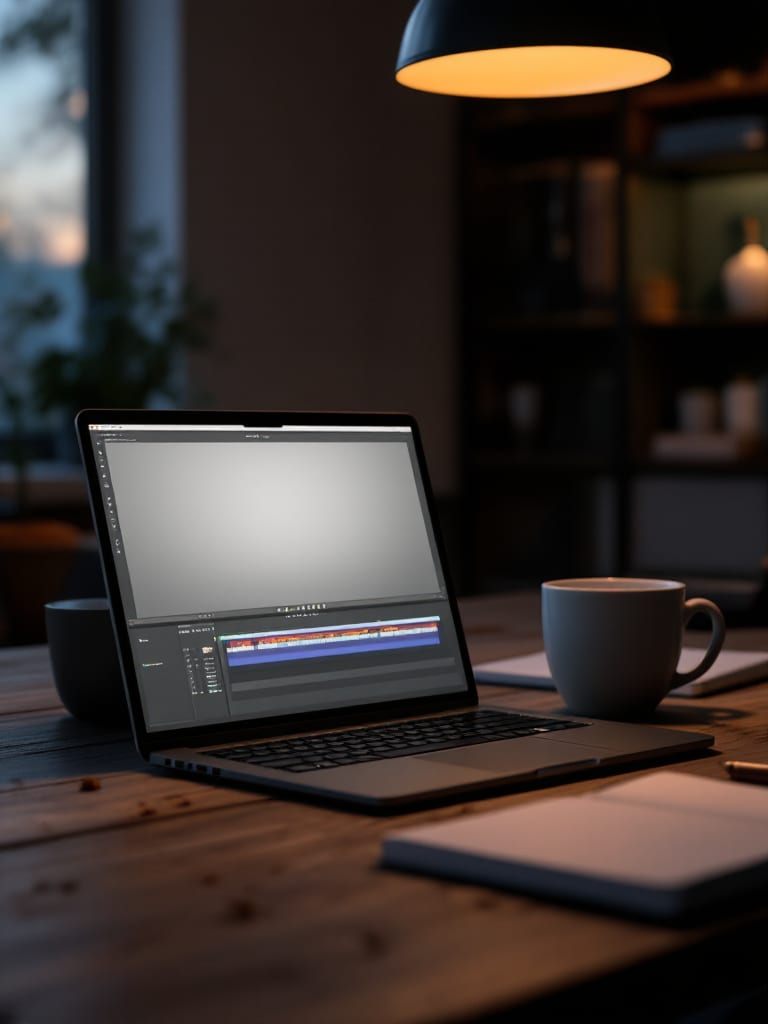
To make an AI video on a laptop in AIGE, add a Video widget to the Canvas, open its editor, choose Make, then From words. Type what happens, set a model and a length, check the price the button shows, press it, then trim the clip and export. This guide covers that text-to-video flow.
Where this works, and what you need
The Video editor is on the laptop Canvas, in a desktop browser. On a phone, the aige.ws/?try=1 demo replays a prepared example without making anything. The phone board is per account and off by default. AIGE on phone vs laptop sets the two side by side.
This guide is the text-to-video route, so it starts from words and needs no picture. You need credits and a plan that includes the model you choose. Typing the words spends no credits, and neither does the Write it well helper in step 3. The button shows the price first, and pressing it is what charges. Every step comes from reading the editor's code, and no clip was made for this page.
Step 1: Open the editor on From words
In the tool bar's Make menu, choose Video, the row whose sub-line starts "Clips on a timeline". A Video widget lands on the board. Press Open editor in its header, pick the Make tab (the second in the library on the left), then the first of its seven chips, From words. The hint under the chips reads "Describe a shot and it's made for you." Turn a photo into a video walks the same opening with a picture in place of words.
The widget on the board has a small form for the same job, which adds its clip at the end of the widget's timeline. This guide follows the editor instead: it places a clip after the one you have selected and offers six other ways to make. Switch to another chip and back, and the words you typed are still there.
Step 2: Write the shot
The box is labeled What happens in the clip, and its grey example reads "A slow push-in on steam rising from a cup…". Until you type something the button stays off, with the line "Describe what happens in the clip first." Press Ctrl+Enter or Cmd+Enter in the box and it presses the button for you, so that shortcut charges too.
What goes in the box is up to you. AIGE's own writing helper, covered next, aims for one paragraph that names six things: the subject, what happens, the camera move, the setting, the light and the mood. They make a fair checklist for words you write yourself. Here is one line written that way, by hand and not by the tool: "A ceramic cup of tea on a windowsill, steam curling up. A slow push-in toward the cup. Early morning, pale grey light through net curtains, a quiet mood."
The editor sends your words as you typed them. This form has no extra boxes for a look, an exclusion or a reference picture. Storyboard, a different chip, has a line for the look of every shot.
Step 3: Let Write it well expand a short idea
The Write it well link sits under the box and stays off while the box is empty. This is what pressing it does, as the code has it:
It sends your words and nothing else. The words go to a Gemini text model on AIGE's servers, with an instruction. No picture goes with them, and neither does the model, length or shape you picked, or anything from your board.
It asks for one paragraph. The instruction is one paragraph of 50 to 90 words covering the six things above, with no headings, numbers, lists or quotes.
It replaces what is in the box. An Undo the writing link appears and brings your own words back. Typing in the box clears the link.
It spends no credits, but it has a limit. The limit is per person, and the editor's auto captions share it. When it runs out, the editor says the writing help is used up for now and to try again in a while, and your words stay as they were.
Two habits follow. Read what it wrote before you press the clip button: a short idea has to grow to 50 to 90 words, so the helper adds detail you did not write, and you can delete what you do not want. And know that a second press rewrites the paragraph, not your first idea, because it works on whatever is in the box. Undo goes back one step only, so copy your original line somewhere if you want to keep it. The text is sampled, so a second press can come back with different wording.
Step 4: Set the shape, the model and the length
The shape lives in the editor's header, not in the form: 9:16, 16:9, 1:1 or 4:5. New widgets start at 9:16, so check it before you press anything that charges. It never changes the price. New to the ratios? What is an aspect ratio explains them.
With words, the shape is a real input, which sets this route apart from starting with a picture. The model is asked to make the clip in it, within the shapes that model makes. A 4:5 timeline is asked for the nearest portrait shape, 3:4 on Seedance, Seedance 2.5 and H3 Max and 9:16 on the rest, and the frame crops it to 4:5. Omni Flash makes only 16:9 and 9:16, so a square timeline gets a 16:9 clip. A clip whose shape still differs from the timeline's is cropped to fill the frame until you select it and choose Fit in the inspector.
Under the box sit a Model list and a Length slider, with Kling V3 and 5 seconds preselected. The list includes Kling V3, Kling 3 Turbo, Kling o3, Seedance, Seedance 2.5, Omni Flash and H3 Max, and its rows come and go with the models. The slider offers only the lengths the chosen model makes: 3 seconds is the shortest anywhere (the Kling models and Omni Flash), and 30 is the longest (Seedance 2.5). How long an AI video can be lists every model's range. A model or length beyond your plan is tagged with the plan it needs.
There is nowhere in this form to choose quality, resolution or sound. The editor fixes them: each model's standard tier, and for Kling V3 it asks for sound.
Step 5: Read the price on the button
The yellow Make the clip button carries the price. On the preselected Kling V3 at 5 seconds it reads "Make the clip · 63 cr", which is Standard quality with sound, and the price covers that sound. It is worked out before you press, from the model and the length alone, so it shows even while the box is empty and does not move with the words or the shape.
On the same settings, 3 seconds is 38 credits and 10 seconds is 126 credits. Every press is its own charge, so changing a word and pressing again is charged again. AI video for YouTube has a price table for other models. These figures are the shipped default table, and the button shows the live price.
Your plan decides what the button will do. By the default plan table (it can change), Starter stops Kling V3, Kling 3 Turbo and Kling o3 at 5 seconds and makes Seedance at 5 seconds only, so the 63-credit clip is within reach. Seedance 2.5 and H3 Max are not on Starter, and Omni Flash there is 360p, not 720p, as a note under the button says. Longer Kling clips and other Seedance lengths start at Pro, and from Pro up every length of these seven models is open. Where a plan falls short, the button shows its name in place of a price, and a press opens the plan sheet without charging.
Step 6: Press it, then wait
Pressing the button puts a "Making…" slot on the timeline where the clip will go, and the header's counter moves to "making 1". Keep editing meanwhile: the clip lands without undoing your changes, and if you deleted the slot first, it goes on the board beside the Video widget instead.
How long it takes is not something this guide can tell you: no video was made for this page, and the code states no figure. What the code does say is that the editor watches a job for ten minutes, then lets go, and picks it up again the next time you change the video or open it. Wait for the note before you close the tab: a Making… slot with no job behind it turns into Didn't finish after two minutes, and closing the tab too early can leave one.
A failed clip reads Didn't finish and offers Try again, and a balance that is short spends nothing. The photo guide covers the same wait for a picture clip.
Step 7: Trim, add the next clip and export
Drag a clip's edge to trim it, or press S at the playhead to split. Each new clip lands after the selected one, so to extend a cut, select the last clip, write the next shot and press the button again. For a run of shots in one go, Storyboard turns one line per shot into up to eight clips: see AI storyboard for a short film. To copy a movement from another video, see Kling Motion Control explained.
Export sits at the top right and costs no credits: the cut is recorded in your browser tab and the file lands on your board. A clip still being made is left out, so wait for it. The resolution choices, file details and the rest of the editing tools are in AI video for YouTube.
Honest note: This guide reads the laptop Canvas editor's code as of 28 October 2026. No clip was generated for it, so it shows none and promises no result: whether a clip matches your words is for you to judge once you have made one. Write it well is a text model rewriting your idea and can add details you did not ask for. Quality, resolution and sound cannot be set in this form: the editor's defaults decide each clip. Labels, models and prices shift, so the button's price beats the figures here.
Quick answers
Question | Answer |
|---|---|
How do I make an AI video from text on a laptop? | In AIGE's Canvas, add a Video widget, open its editor and pick From words under Make. Describe the shot, choose a model and a length, and check the button's price before you press Make the clip. Trim the result and export. |
Is there a free AI video generator from text? | Not in AIGE. Words and the Write it well helper cost no credits, but a clip needs a plan and credits, and its price is on the button before you press. |
Is there an AI video generator app for my phone? | Not for this flow: the editor is on the laptop Canvas. The phone demo at aige.ws/?try=1 only plays a prepared example, and the phone board is a per-account feature that is off by default. |
What does Write it well do? | It sends only your words to a Gemini text model and asks for one paragraph of 50 to 90 words: subject, what happens, camera move, setting, light and mood. The result replaces your text, and Undo the writing brings your words back. It spends no credits and has a per-person limit that auto captions share. |
How much does a text-to-video clip cost? | On the preselected Kling V3 at 5 seconds, Standard quality with sound, a clip is 63 credits. Other models and lengths price differently, and the button prints the number before you commit. |
Which models make a video from words in AIGE? | The From words list includes Kling V3, Kling 3 Turbo, Kling o3, Seedance, Seedance 2.5, Omni Flash and H3 Max, and its rows change over time. Your plan decides which of them you can use. |
How long can the video be? | A single clip is 3 seconds at the shortest and 30 at the longest, depending on the model. For a longer video, make more clips and cut them together on the timeline. |



Comments
Be the first to comment.